
Introduction
RECRUIX Software is meticulously designed to seamlessly align Technology and Process Automation, empowering organizations to effortlessly accomplish their recruitment objectives. At the heart of this innovation lies RECRUIX, a dynamic platform meticulously crafted to serve as the nucleus for all key stakeholders, primarily recruiters, streamlining their day-to-day operational activities with utmost convenience.
Our overarching ambition is to forge an AI-Powered ATS Recruitment Management System that not only facilitates Requirement creation, sourcing, interviews, selection, and offer roll-outs but also seamlessly integrates with HRMS. This envisions an uninterrupted flow of data from existing systems, ensuring a cohesive and efficient recruitment process.
Purpose
This manual serves as your indispensable resource for all things related to RECRUIX and its module specifications, meticulously aligned with your company's unique requirements. Within these pages, you will uncover a wealth of insights, encompassing an array of features, customizable options, and an in-depth exploration of concepts, processes, procedures, formats, tasks, and illustrative examples - all designed to empower you in harnessing the full potential of this powerful software solution.
Scope of the document
Within the realm of RECRUIX lies a meticulously defined scope, encapsulating the entirety of business processes and workflows. This orchestrated symphony is achieved through an array of purpose-driven modules: User Manager, Requirement Manager, Resume Manager, Resume Search, Validation & Shortlisting, Interview Scheduler, and Offer Manager. Consider this document as the bedrock upon which our project will take form, weaving together seamless efficiency and operational prowess.
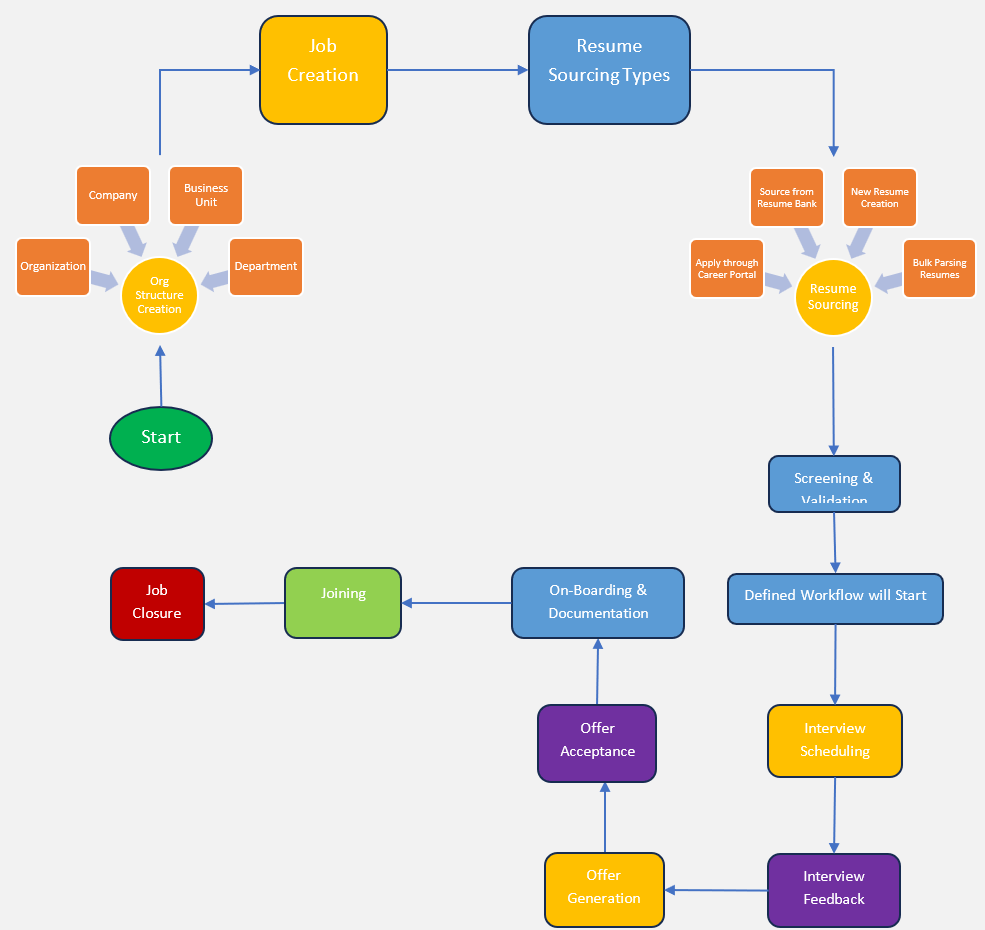
Recruix Flow
Modules Covered
| Modules | Activities Description |
|---|---|
| Organization/Company/Business Unit/Department Creation | This module facilitates the structured setup of organizational units, ensuring a clear hierarchy within the system. |
| Jobs Module | The Jobs Module enables the creation, management, and tracking of job openings, providing a centralized platform for all recruitment activities. |
| Candidate Module | This module empowers users to efficiently manage and monitor potential candidates to be found and tagged in jobs. |
| Resume Search | Conduct targeted searches to identify the most suitable candidates based on specific criteria, enhancing recruitment efficiency. |
| Applicant Module | The Applicant Module facilitates the seamless transition of candidates into official applicants, capturing crucial information for further evaluation. |
| Workflows | Define and automate recruitment workflows to standardize processes and optimize the candidate journey. |
| Template Creation | Create and customize templates for consistent and professional communication with candidates and stakeholders. |
| Interview Management | This module provides tools to efficiently schedule, track, and evaluate candidate interviews, ensuring a structured and organized process. |
| Offer Management | Efficiently manage the offer process, from initial creation to final acceptance, streamlining the hiring of top talent. |
| On-Boarding Module | Streamline the onboarding process with this module, ensuring a smooth transition from candidate to employee status. |
| Career Portal | Showcase your organization's brand and available opportunities through a customizable career portal, attracting top talent effectively. Allow candidate logins by creating candidate profiles, documents, Offer acceptance and on-boarding. |
Login Screen
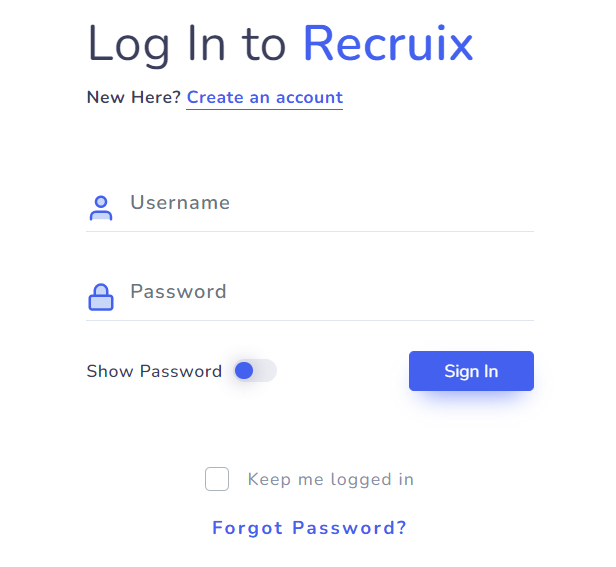
The application requires login credentials as Username and Password and the login details will be provided by the Recruix Team.
Dashboard
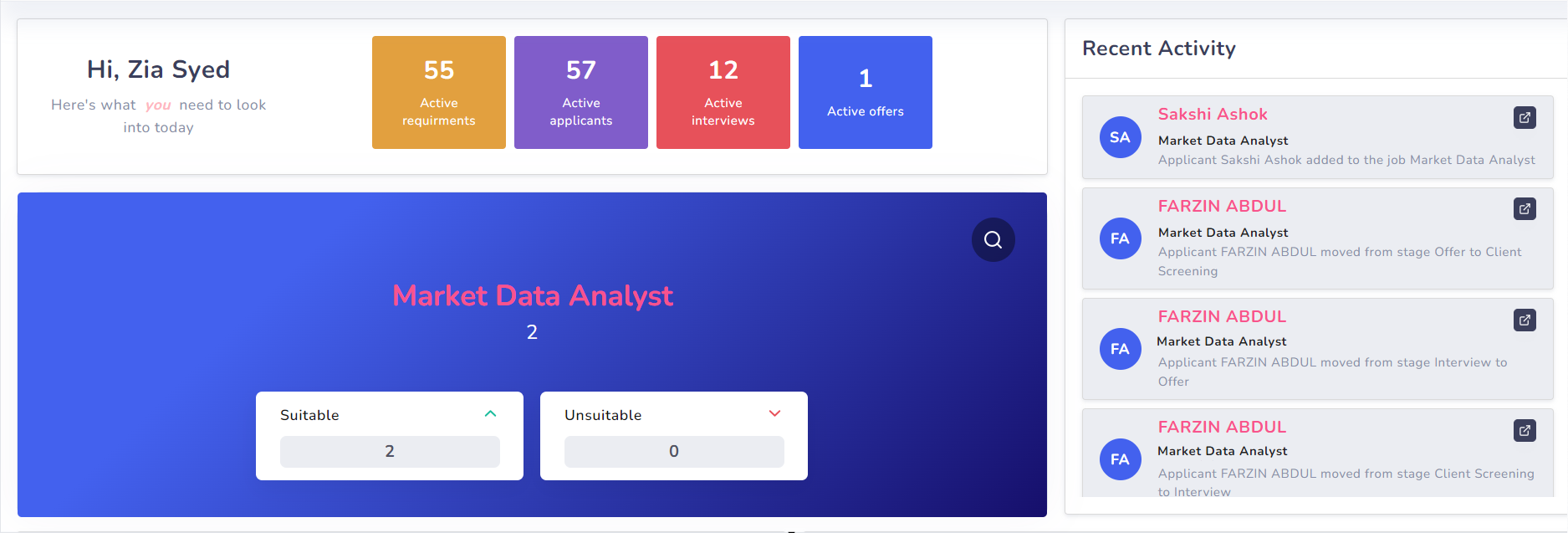
The Recruix Dashboard offers comprehensive insights into the recruitment process, delivering critical information on Active Requirements, Recruitment Funnel, Active Applicants, Recent Activities, Active Interviews, and Active Offers. This sophisticated platform also empowers users with advanced filtering capabilities based on a range of parameters to filter your Dashboard.
Note: This is a standard non-customizable dashboard.
- Active Requirements:
- It provides the number of jobs that are currently active in the ATS. Hence, notifying the recruiters to work on these jobs.
- Active Applicants:
- It provides the total number of unique candidates which are linked to jobs.
- Active Interviews:
- It provides number of applicants which are in INTERVIEW stage and require further initiation to proceed in the workflow
- Active Offered:
- It provides number of applicants which are in OFFER stage and require further initiation to proceed in the workflow
Recruitment Funnel
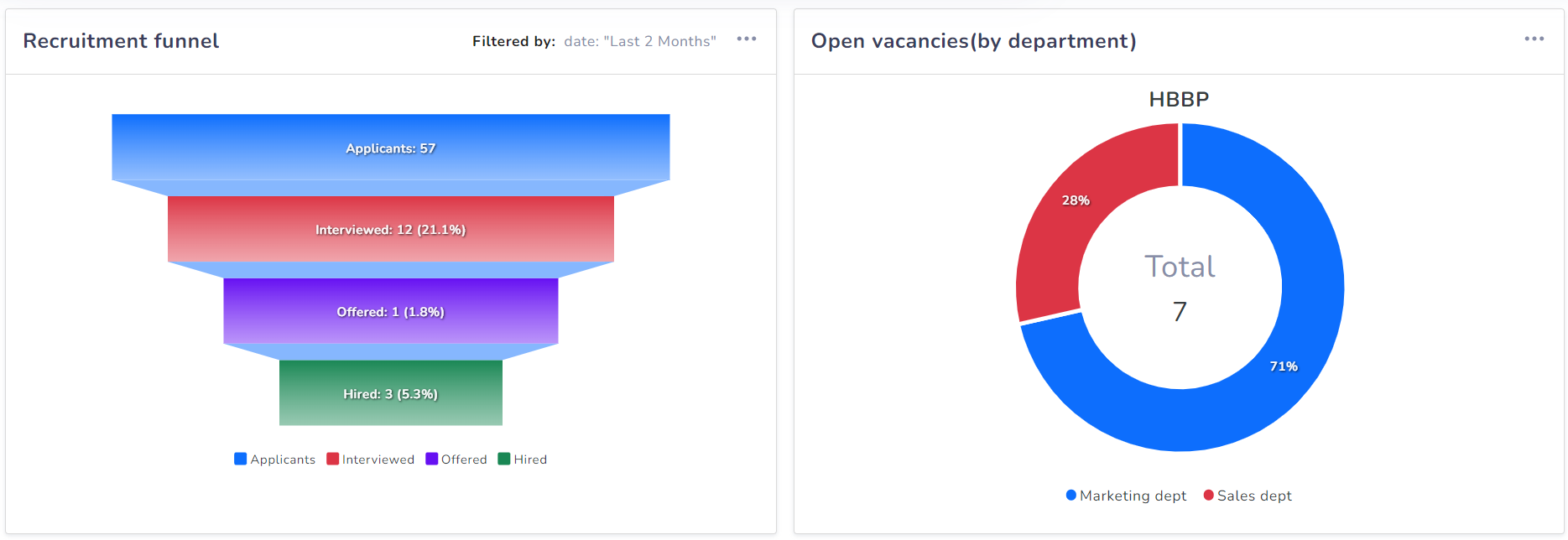
It provides a visual journey from the initial pool of applicants to the ultimate number of successfully hired individuals using various filtering options.
This insightful tracking is further refined through customizable filters such as Date based filtering, User based filtering, and Organization based filtering, providing a nuanced perspective on recruitment success.
Open Vacancies
It provides a pie-chart representation to identify the number of open positions in an organization and their division in various departments.
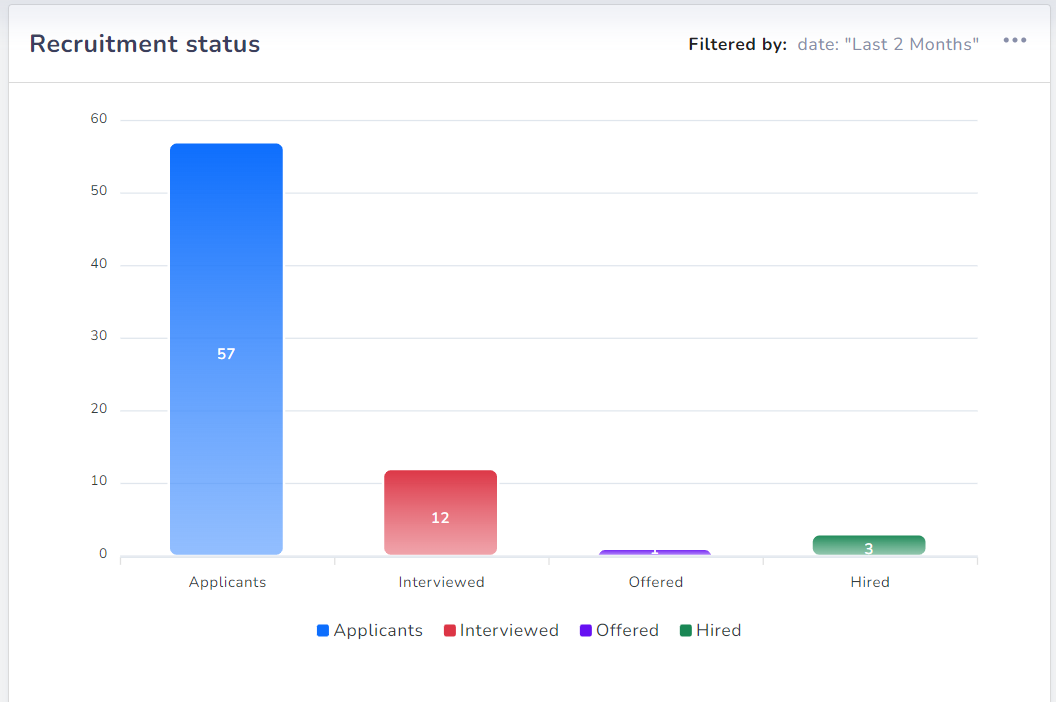
Recruitment Status
It provides a graphical representation for identifying the recruitment efficiency of users and their conversions based on the number of applicants hired.
The in-sight can be customized by filtering the results based on Date, Department and users to separately monitor each user efficiency.
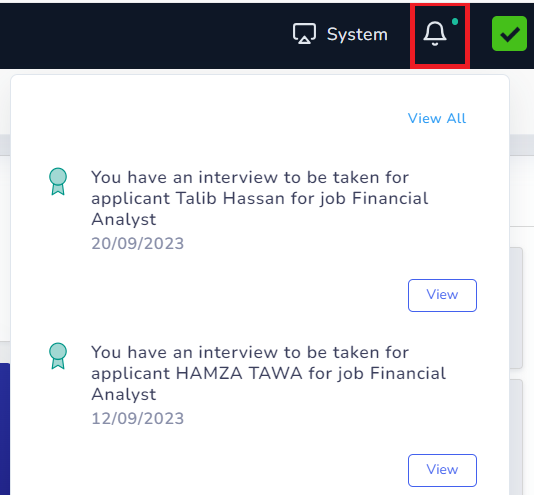
Follows-ups and Activities
This option will help to keep yourself updated by notifying you about recent activities pending.
Calendar
The Recruix calendar option helps a user to keep a track of your time and plan accordingly to the available dates. The calendar option allows you:
| - Block your Dates | - Set Reminders |
|---|---|
| - Events blocked by the team | - Create and assign task to your team |
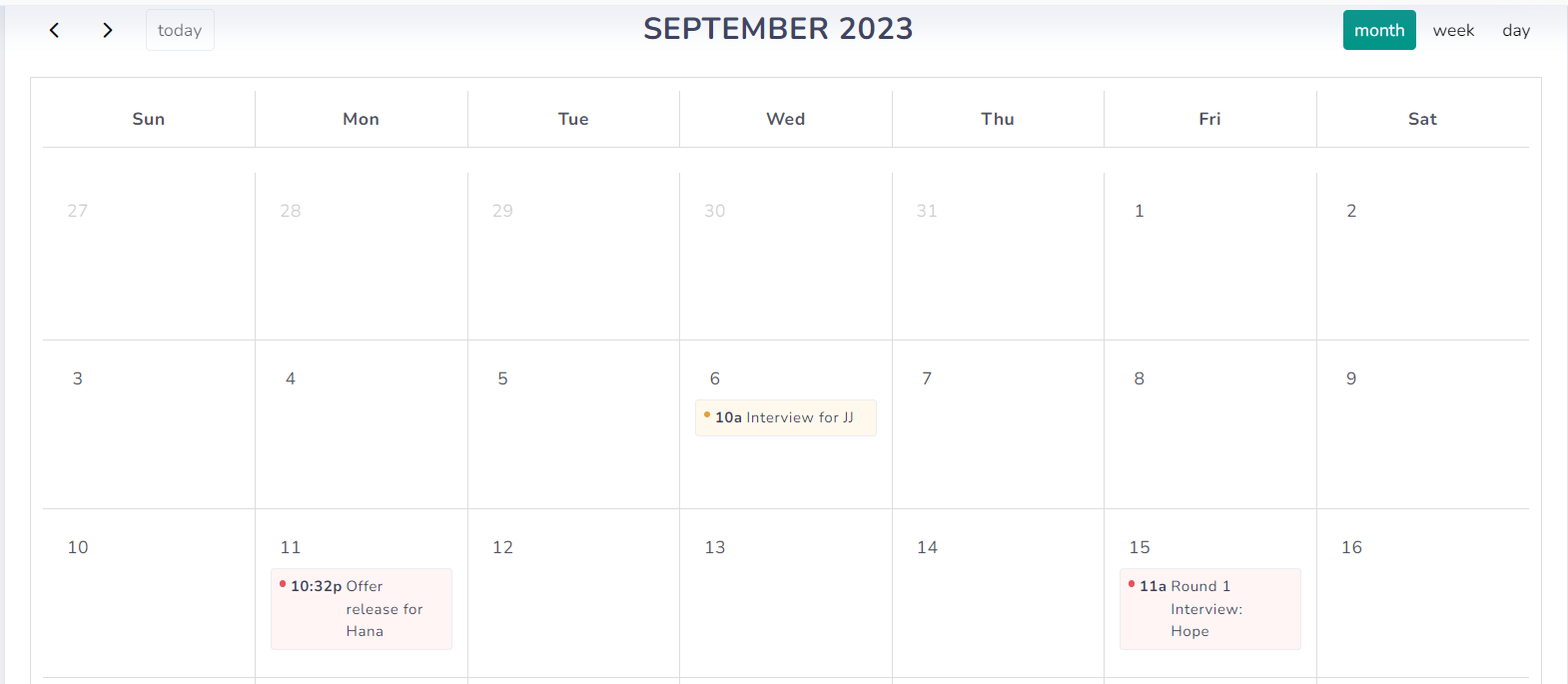
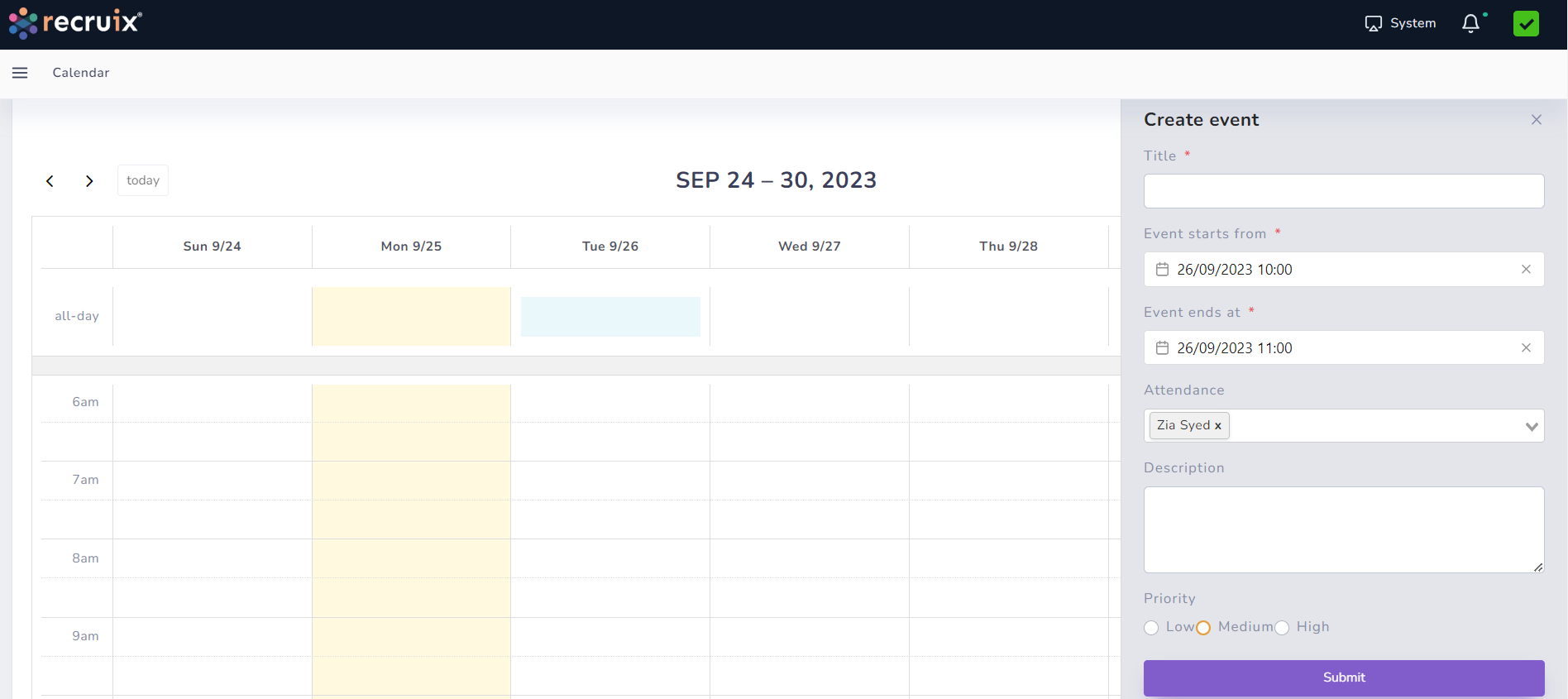
Different type of views – The calendar can be viewed in three different views:
- Monthly view
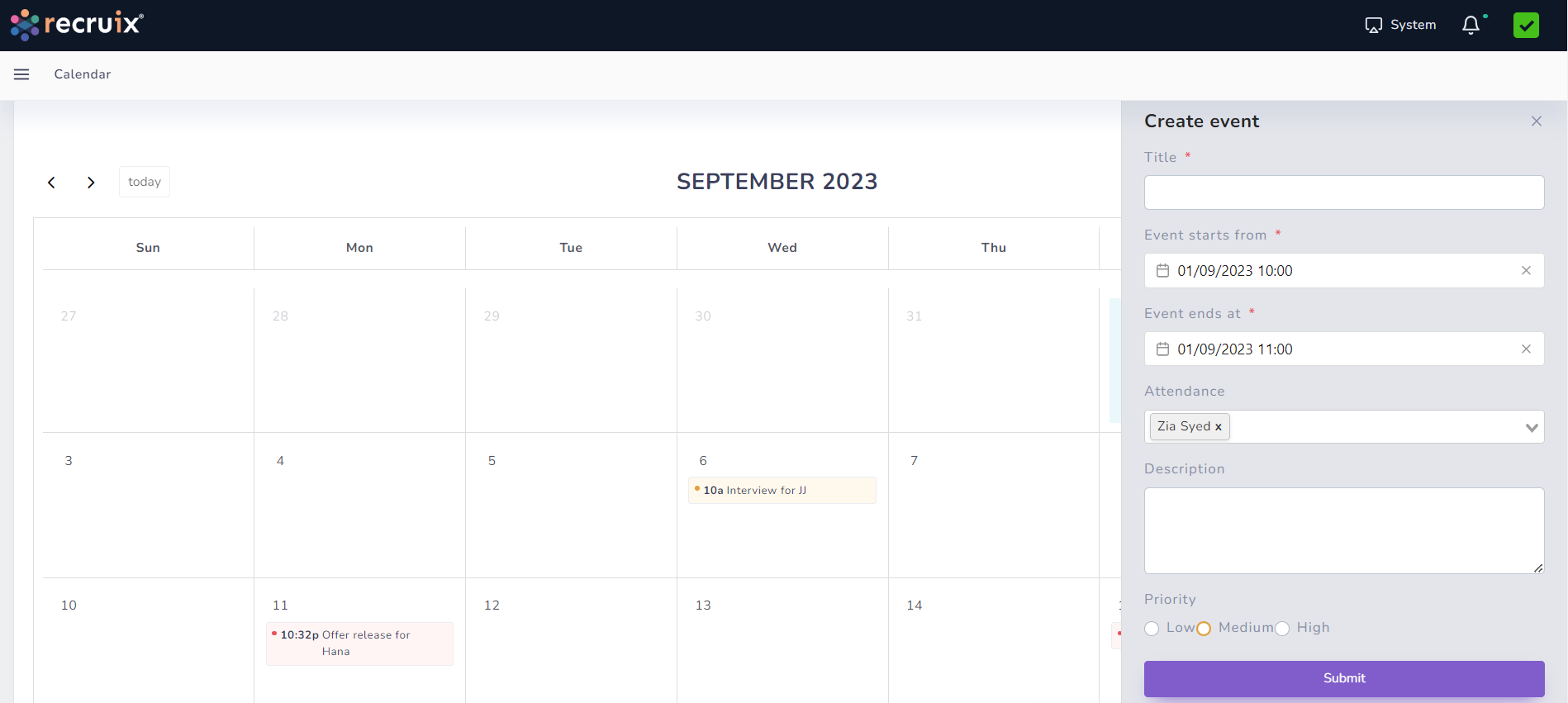
Creation of Event: Clicking on a specific date allows to create an event on the selected date and notify the attending people.
- Weekly view
- Day view
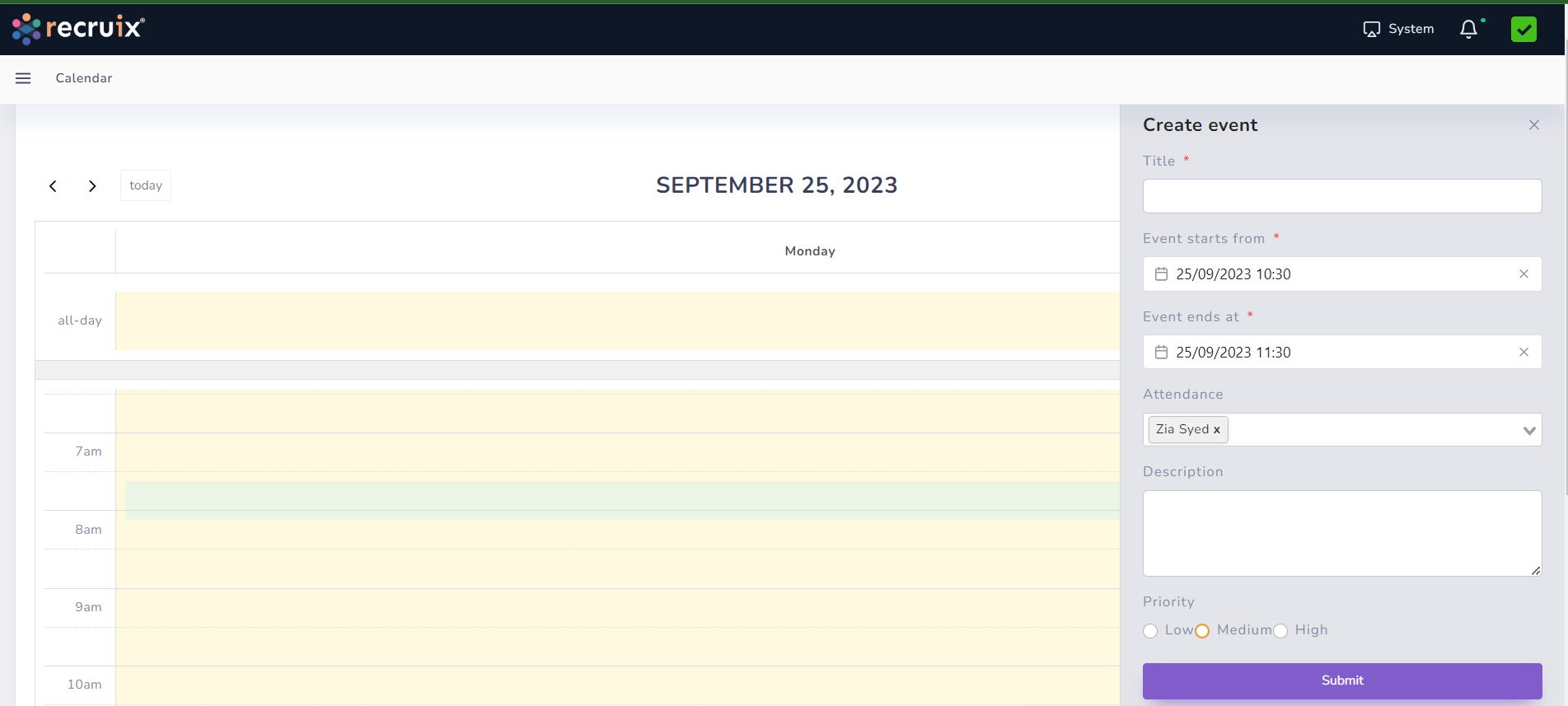
Note: Each Task/Event can be tagged with a priority & Description, to notify the attendees of the importance and description of the event.
Organization Module
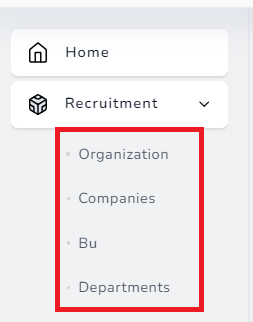
- The organization module of the Recruix, helps the user to classify/define the structure according to their organization. The Org structure can be divided into 4 (or) less categories, namely: Organization | Companies | BU | Departments.Note: The name of the above categoriescan be changed according to the terminology used in the organization.
Organization/Company/BU/Department View
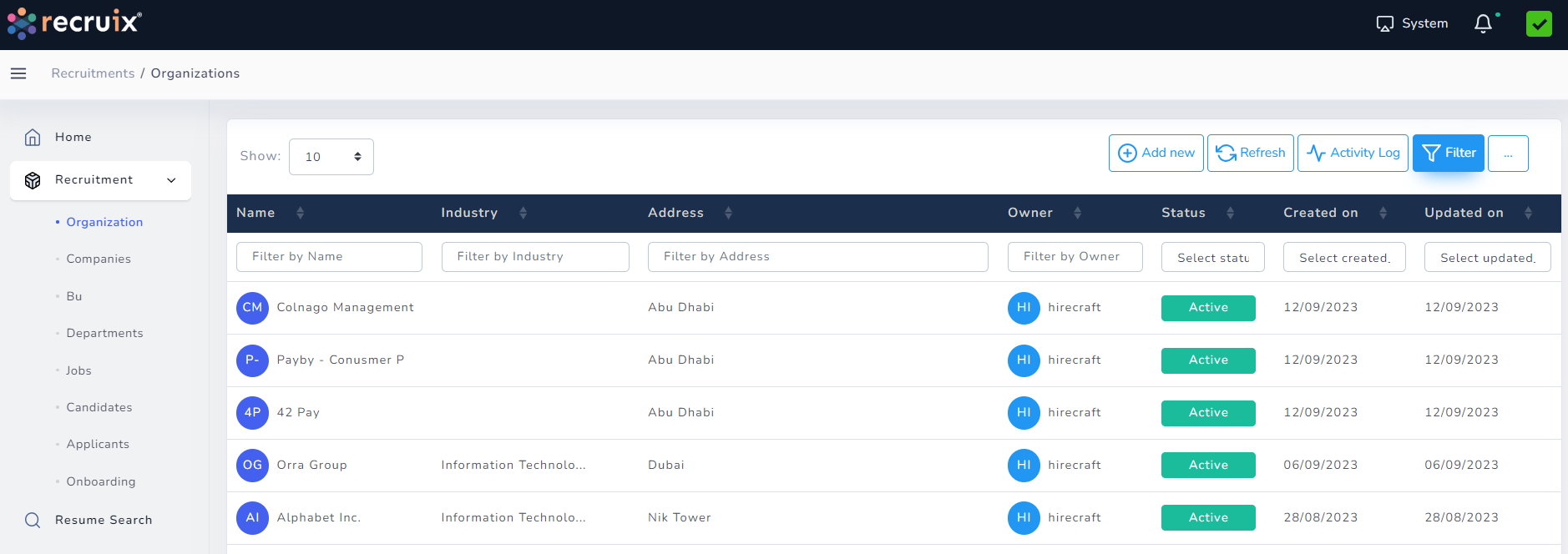
The organization/Company/BU/Department section displays list of the same been created by the user for their recruitment process.
Each Organization can have multiple child companies linked under.
Each Company can have multiple child BUs Associated.
Each BUs can have multiple Departments tagged under them i.e. defining the complete organization structure in 4-levels (or) lesser if required.
Organization/Company/BU/Department Filtering
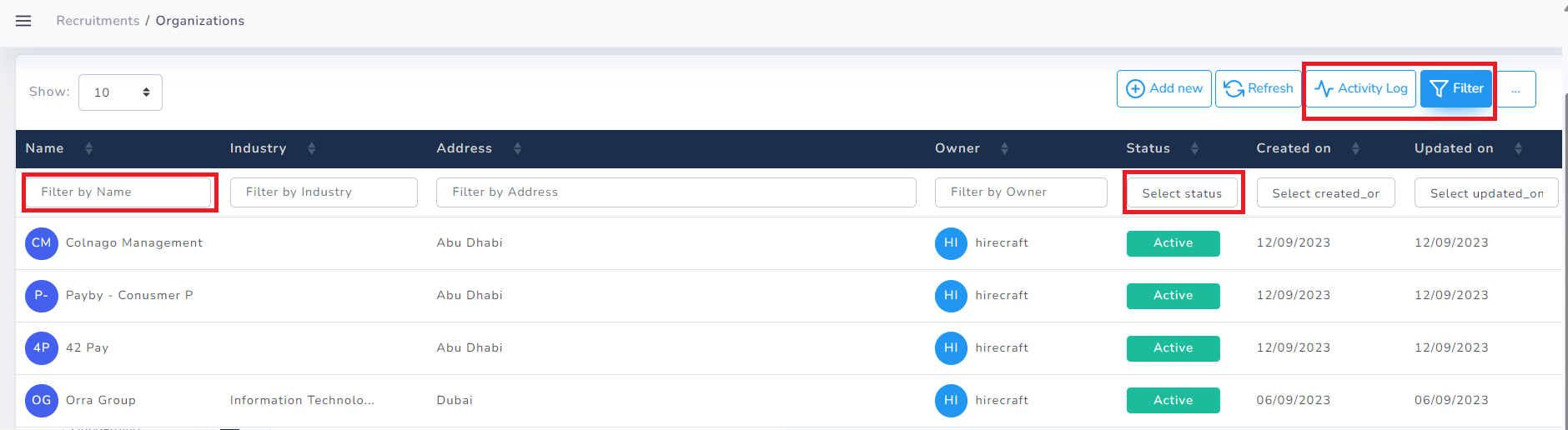
- Activity Log: Allows you to display complete history of the organization/Company/BU/Department section and trace of user activities for monitoring purpose.
- Filter Button: Allows you to filter the complete organization/Company/BU/Department sections by filtering based on each column.
Organization/Company/BU/Department Sorting
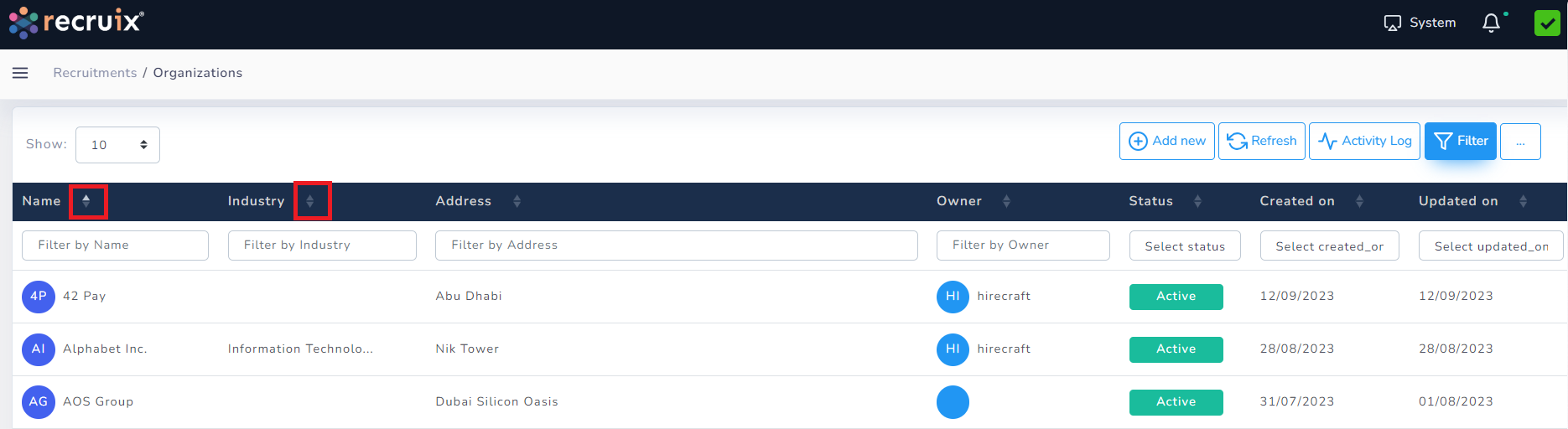
Recruix allows sorting based on each column in-order to make your work easy and manageable. Just by clicking on the arrows at every column, the data can be sorted in Ascending/Descending order accordingly.
Organization/Company/BU/Department Grid
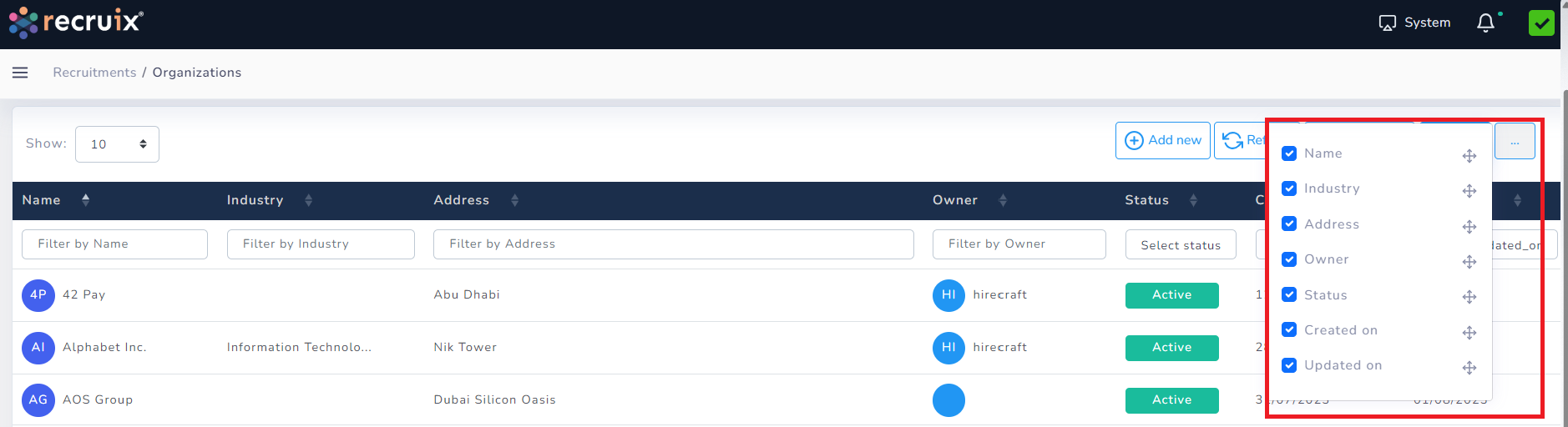
Identify what you want to display
With Recruix, the grid list can be customized and re-shuffled according to the needs of the user. Allowing each login to seperately design their grids and display the data for their use.
Jobs Module
Requirement window allows the designated user to create the Requisitions based on provided skills set, experience, and qualification for the requirement. Requirement Manager Functionalities are as follows
- Creation of new requirement by designated user
- Requirement Status update based on progress
- Requirement Modification
- Requirement Team Assign & Posting to Career Portal
Requirement Field and Description
- New Requisition Creation
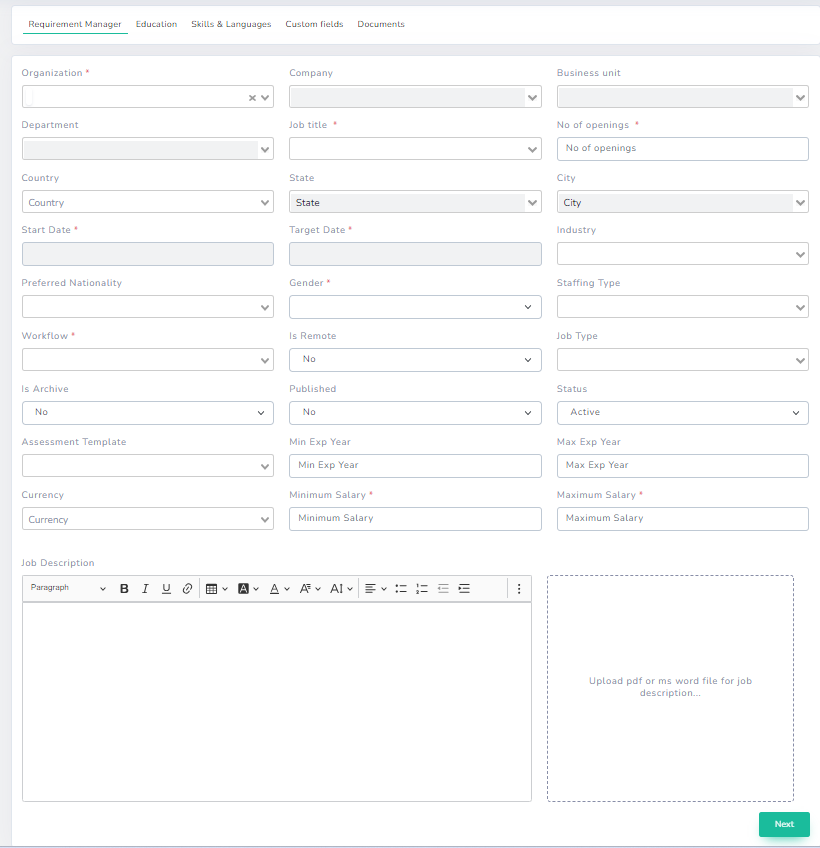
Requirement will be created by the user as per the business request, either from Recruiter portal or Hiring Manager portal. User will have the provision to fill various requirement details provided in the requisition creation window.
Basic Fields in New Requirement Window
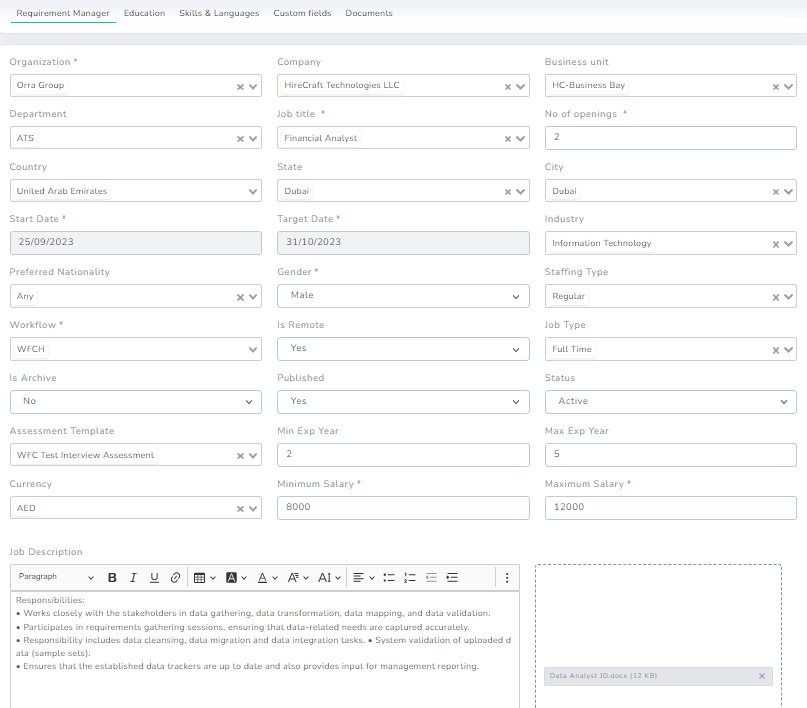
- Requirement Field and Description
- Creation requisition according to the Client/Org Structure
- To capture Education Criteria
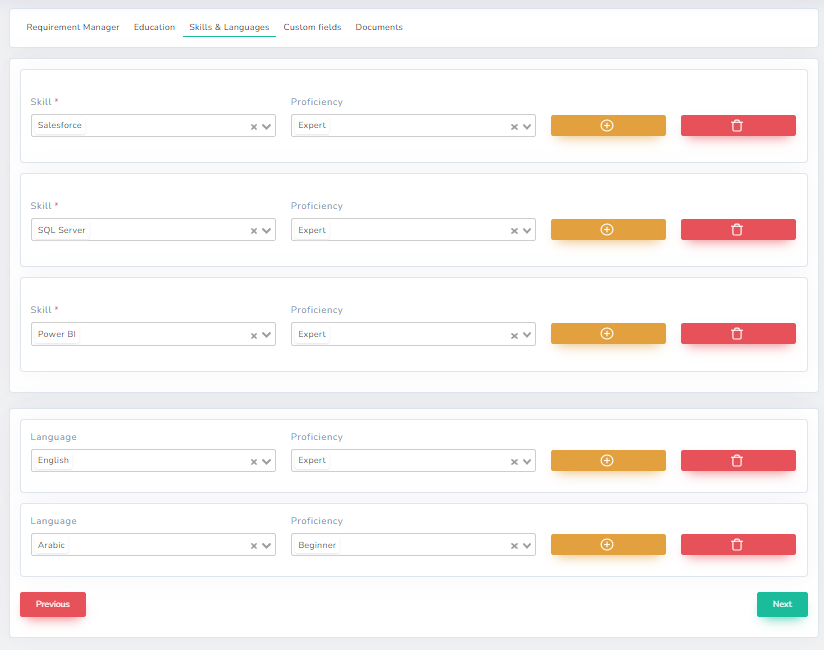
- To capture skills & language, proficiency and experience details
- Custom Fields Allows you to add additional information/additional new fields in the requirement manager as per your customized needs
- Documents Allows to attach multiple documents against the requirement if required (pdf, word, excel, jpeg, etc.)
- Job description
Job list
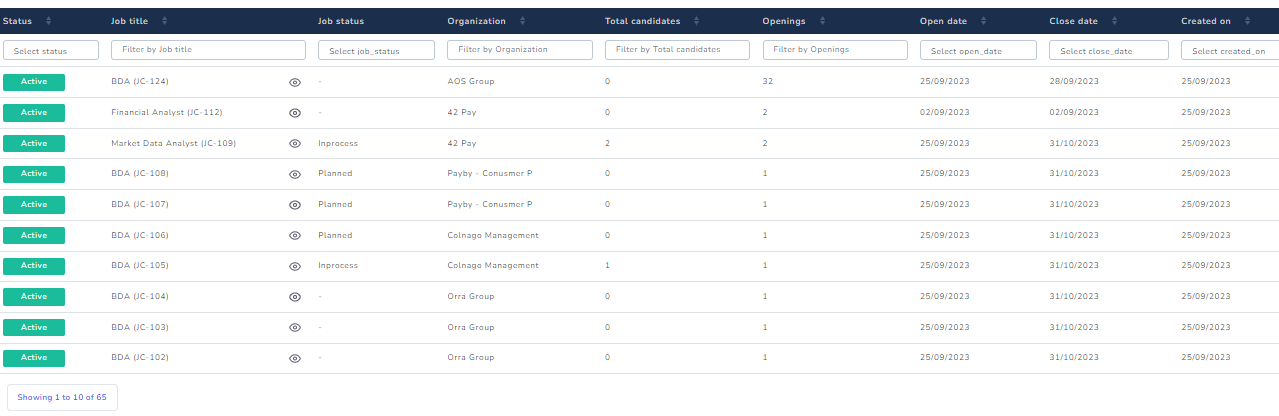
The job List comprise of the jobs created by the Recruiter. It gives the actual status of the Requisitions created. The List also comprises of the details pertaining to In-process Requisitions like No of CVs attached, number of openings, Created Date, etc. Each value of number of applicants linked to the job is a hyperlink which navigates to the corresponding applicant page.
Recruix provide column-based searching & sorting also for the job list, making it easy to aim and identify the desired requisition.
Also, the column in the list can be re-arranged and hided based on the user preference.
Bulk Action of Requirement List

The “Bulk Action” option in the job list allows the user to:
- Import From CSV: A sample CSV file can be downloaded by clicking “Import from CSV” and job details can be filled in the file with relevant data and saved.
Once the CSV file is saved, the same can be uploaded to import the jobs into the system.
- Export to CSV: The user can export multiple jobs with relevant details from the job module to CSV file from the ATS system based on the filter date range.
Job Summary
While working on the job, when a job is clicked from the job list, it allows to open a summary window of that particular job to work on.
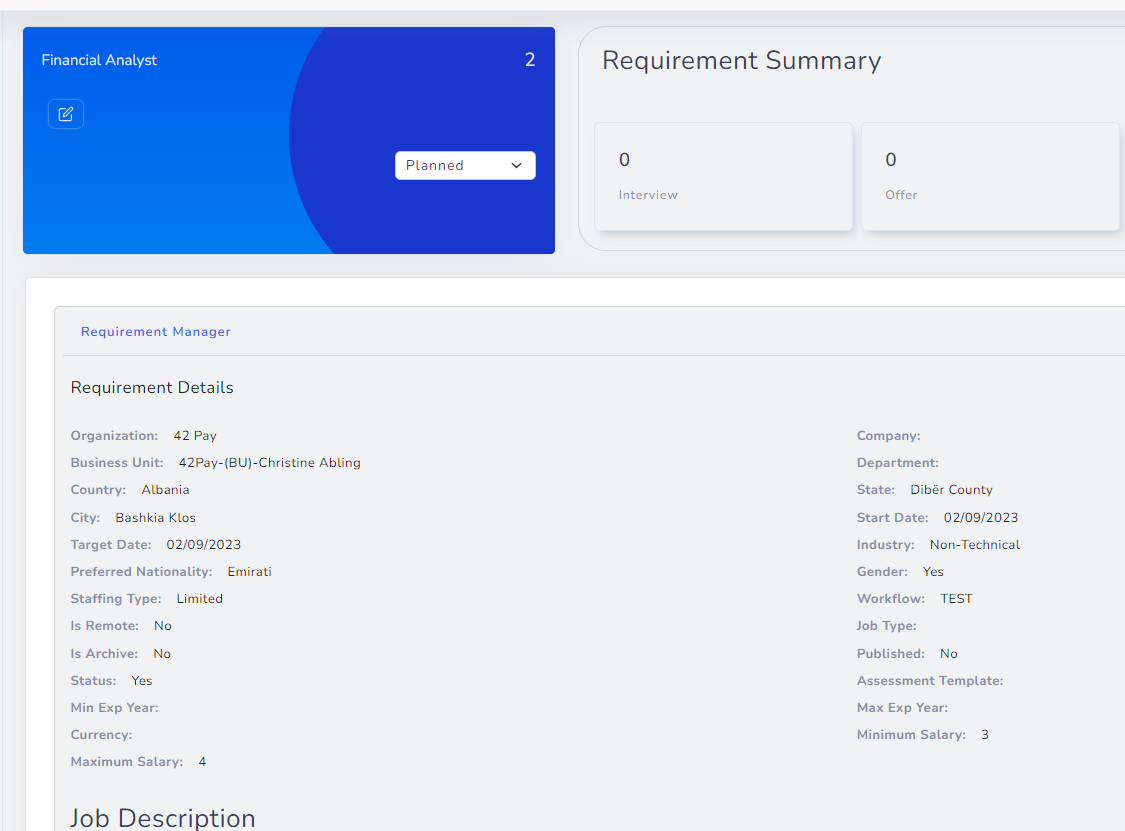
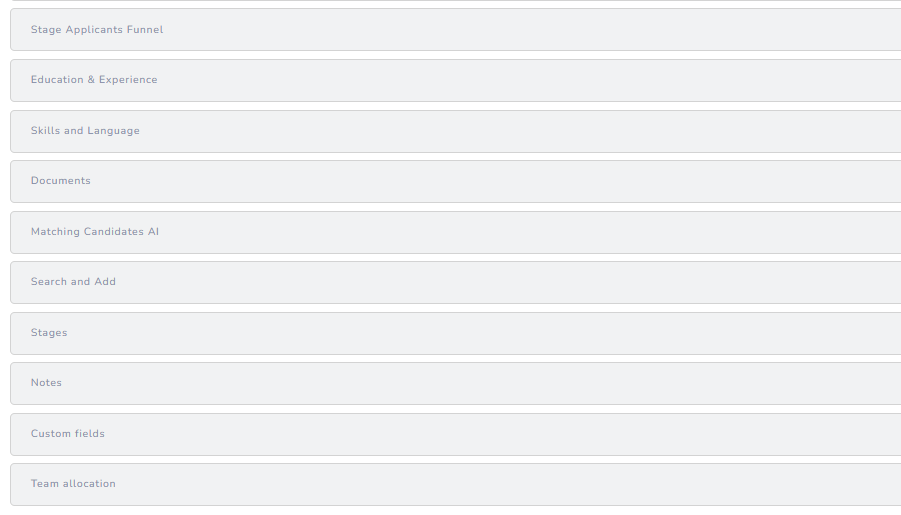
Recruix allows many functionalities to work with against a job:
- Job Summary : Displays and allows to edit the relevant information related to the job
- Education & Experience : Displays the academic specification required for the related job
- Skills & Language: Displays the skills specification required for the related job
- Document: Contains attachments of all documents related to the job
- Notes: A user can add multiple notes agaist the job which will be visible to other authorized users to identify/take a note of anything specific. A user can add notes under their name against the requirement.
- Custom Fields: Contains all the newly added customized fields added in the job manager by the user for capturing other relevant details(If Required)
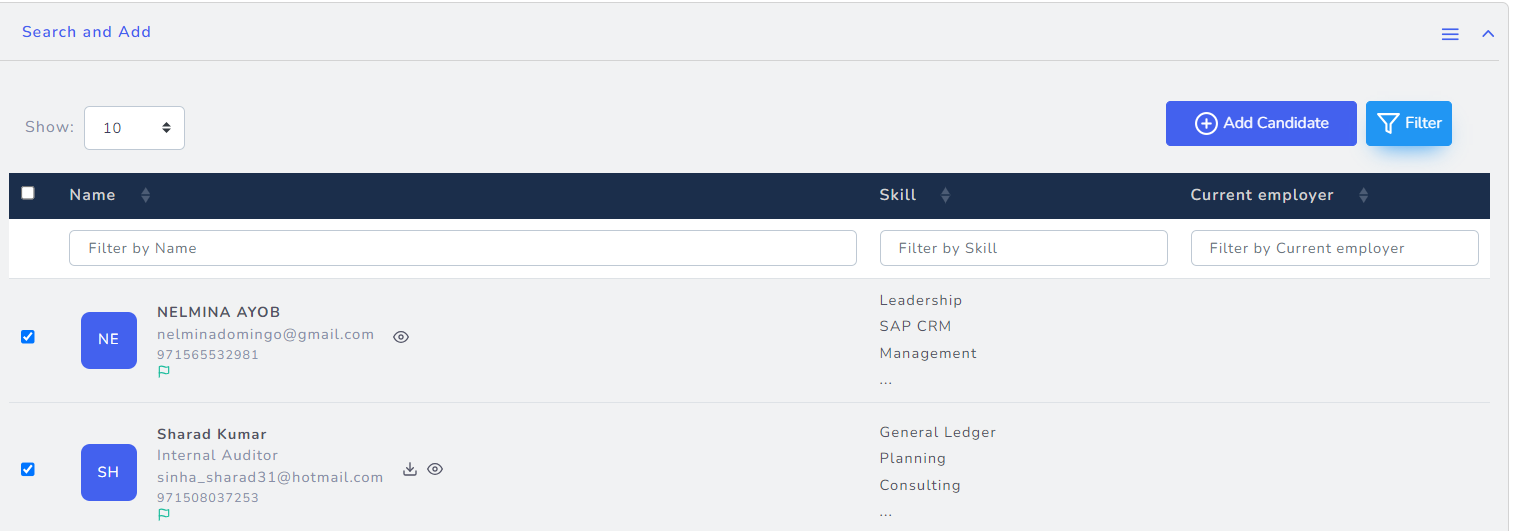
- Search and Add: This feature of Recruix, allows to link a candidate from system’s resume bank to the job. The user can search and filter candidate based on different criteria and tag that candidate agaist the job to process them further.
- Matching Candidates AI: The system automatically evaluates compatibility between candidate profiles and posted jobs using AI Matching scoring algorithms.
AI matching begins with the recent Job Title comparison between a Candidate Profile recent profession and a Posted Job. This comparison acts as the entry point for the AI engine. The AI engine calculates a total matching score based on the following attributes:
Skills
Experience
Education
Salary Expectations
Location
Language
Whenever updates or changes are made to either the candidate profile or the posted job, the AI engine automatically recalculates the matching score in real time.
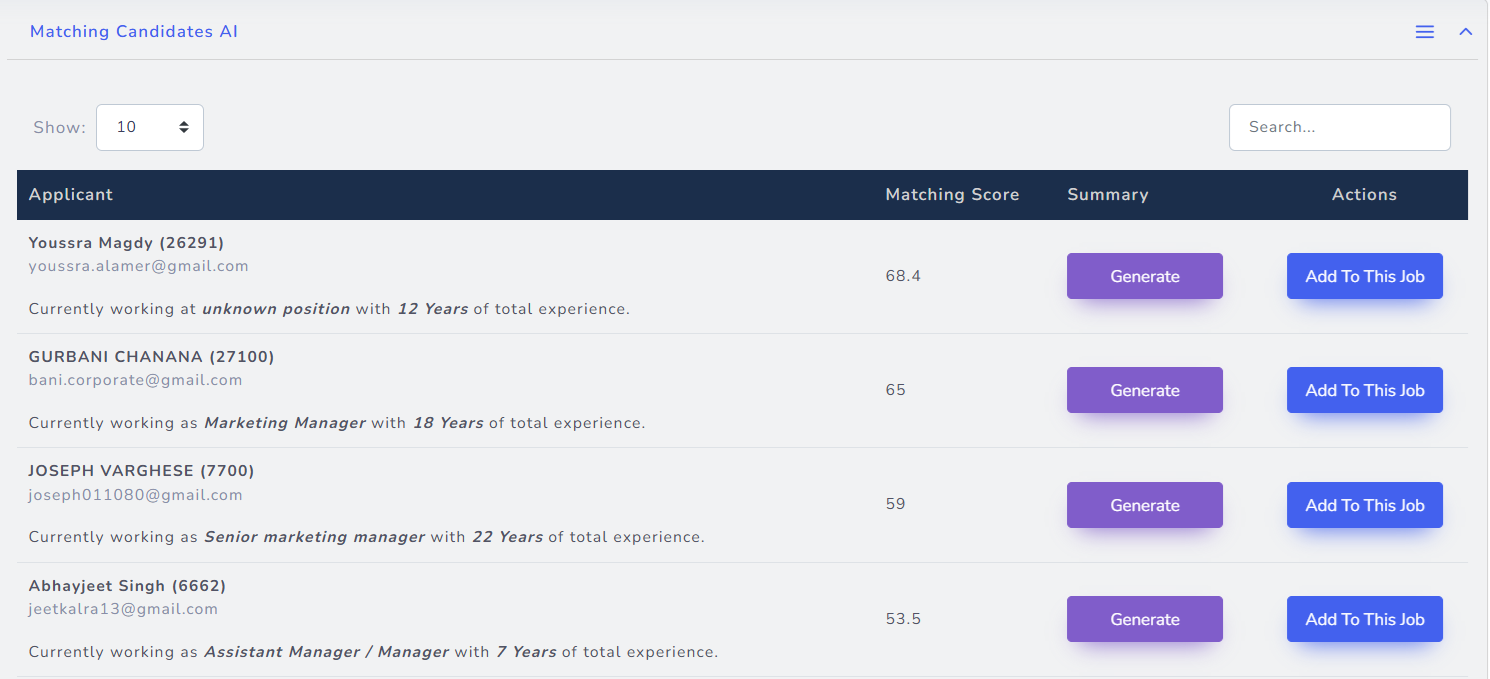
Among the candidates provided by the system, the recruiter can check the candidate profiles and link the relevant candidates to the job by clicking “Add” button against each relevant candidate.
- Search & Add: The system shall provide users with access to the complete repository of candidate resumes stored within the ATS.
Users shall be equipped with a powerful search tool to efficiently explore the resume bank using keywords, phrases, or specific qualifications.
The user can use filters to search the candidate and link the relevant candidates agaist the job by selecting the relevant candidates and then clicking "Add Candidate" button at top right.Note: The system shall support Boolean search operators to enhance search precision and flexibility.
Candidate Manager
The Candidate Manager is a pivotal component within our Applicant Tracking System (ATS), serving as a centralized repository for all profiles that are not linked to any job currently. This module encompasses both parsed resumes and manually created candidate entries that have not yet been associated with any specific job opening.
It acts as an invaluable internal resume bank, enabling users to perform refined searches based on diverse criteria, ultimately facilitating seamless candidate tagging to relevant job positions.
Different tabs are available for storing the resume information.
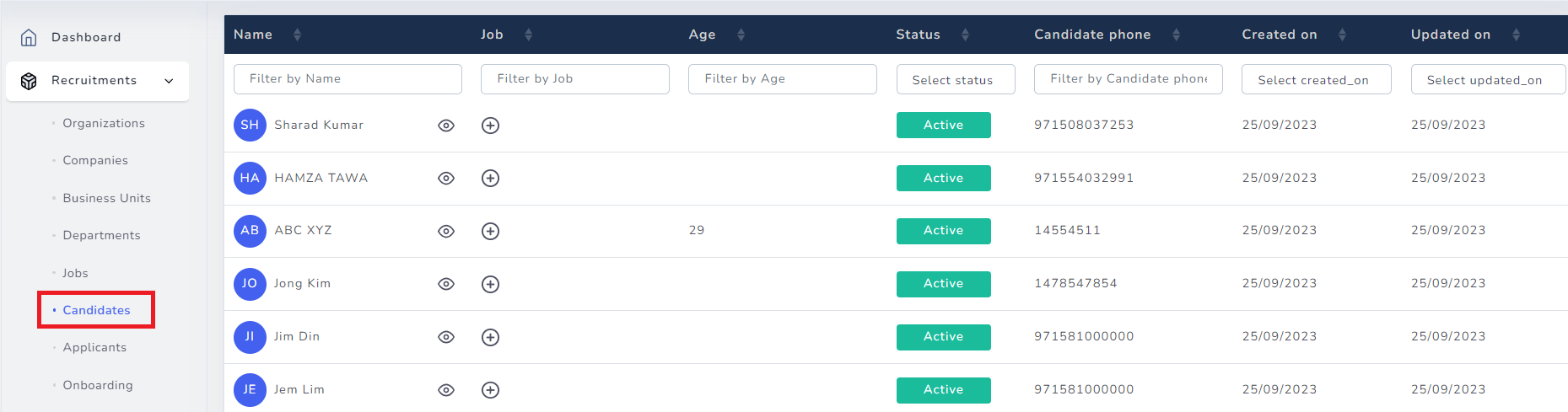
Candidate Module Features
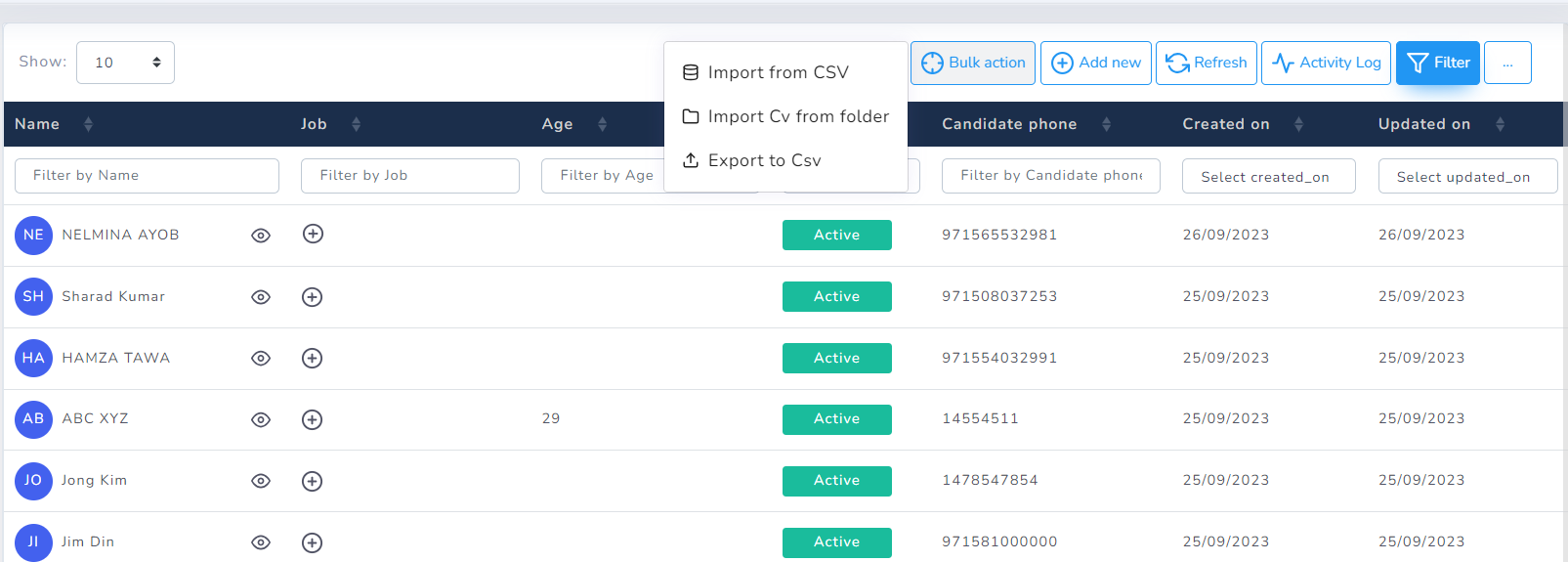
- Bulk Action: The “Bulk Action” option in the candidate list allows the user to:
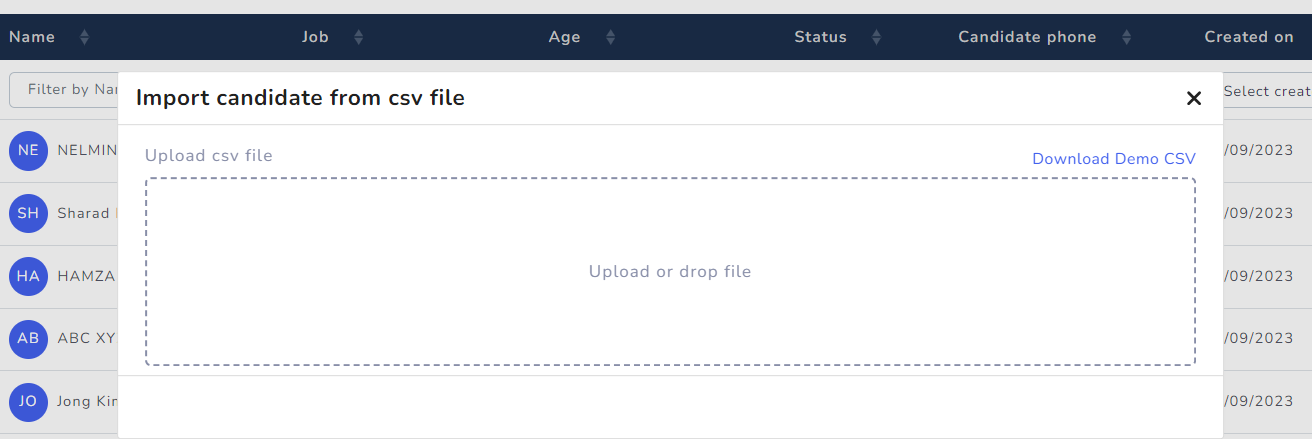
- Import from CSV: A sample CSV file can be downloaded by clicking “Import from CSV” and candidates details can be filled in the file with relevant data and saved.
Once the CSV file is saved, the same can be uploaded to import the candidates into the system.
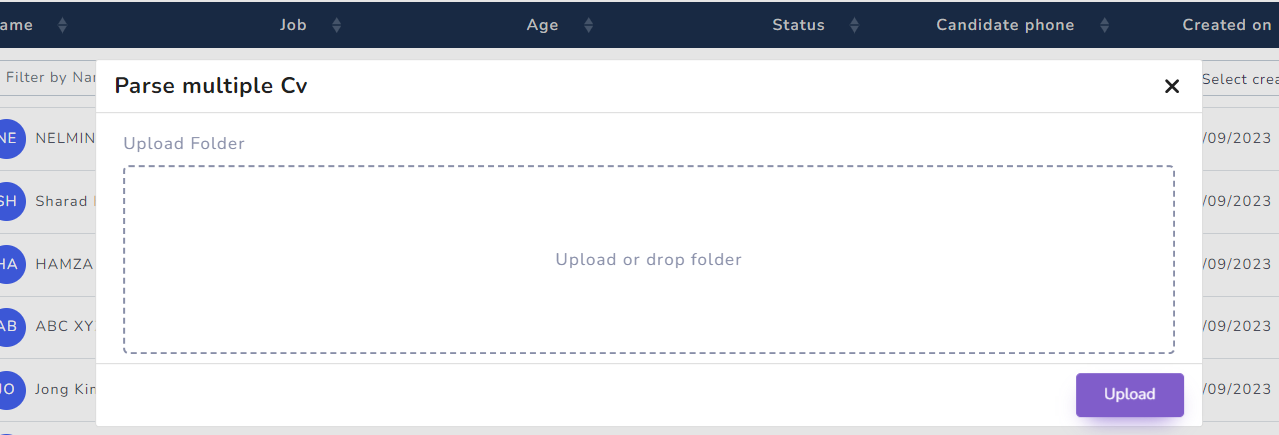
- Import CV from Folder: Allows you to select a folder conatining resume from your PC and directly parse all the CVs in the system from the folder.
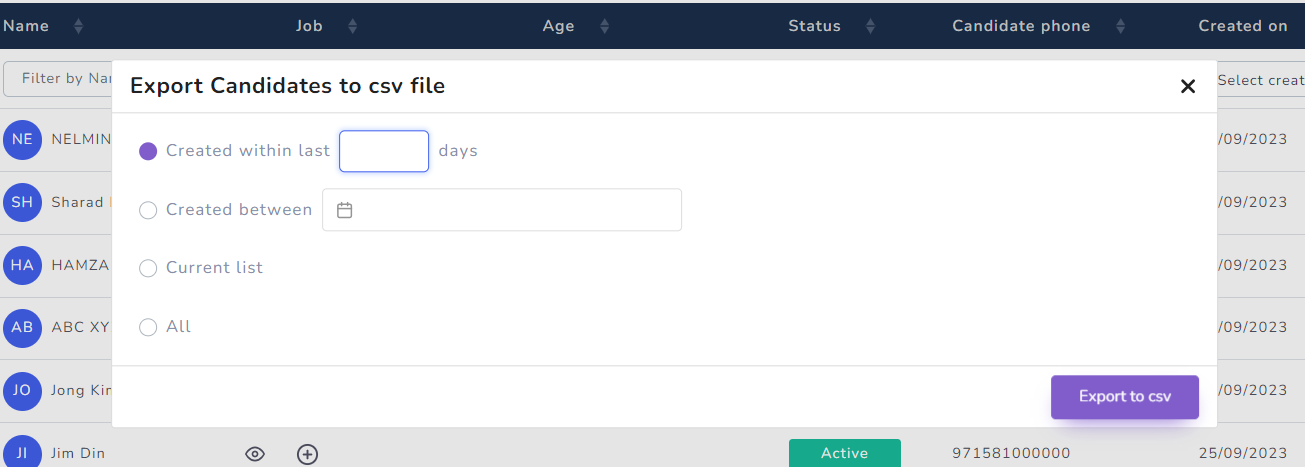
- Export to CSV: The user can export multiple candidates with relevant details from the candidate module to CSV file from the ATS system based on the filter date range.
- Add New Button: This feature of the system allows a user to craete a new candidate profile for a new user. Hence, referring to manually craeting a new candidate in the system.
- Filters: Allows you to filter the complete candidate module by filtering based on each column.
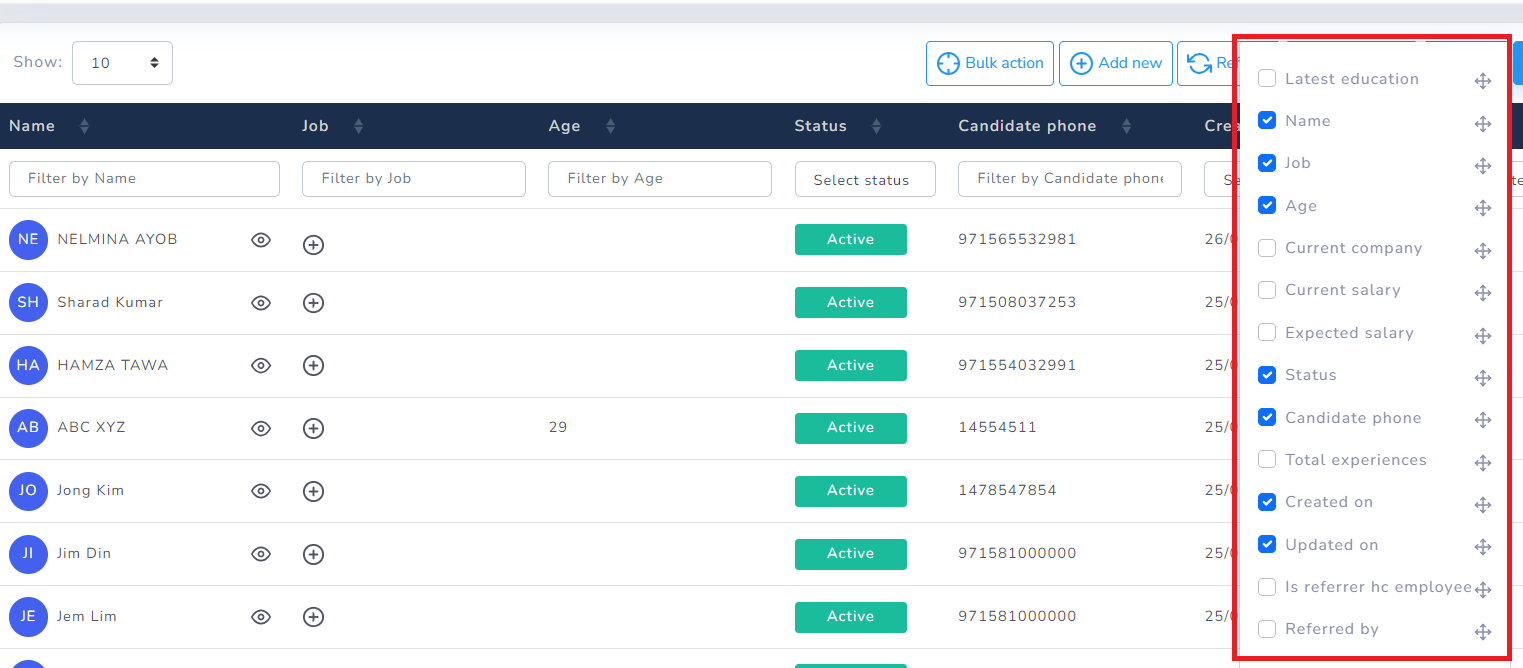
- Grid Sorting: With Recruix, the grid list can be customized and re-shuffled according to the needs of the user. Allowing each login to seperately design their grids and display the data for their use.
Candidate View
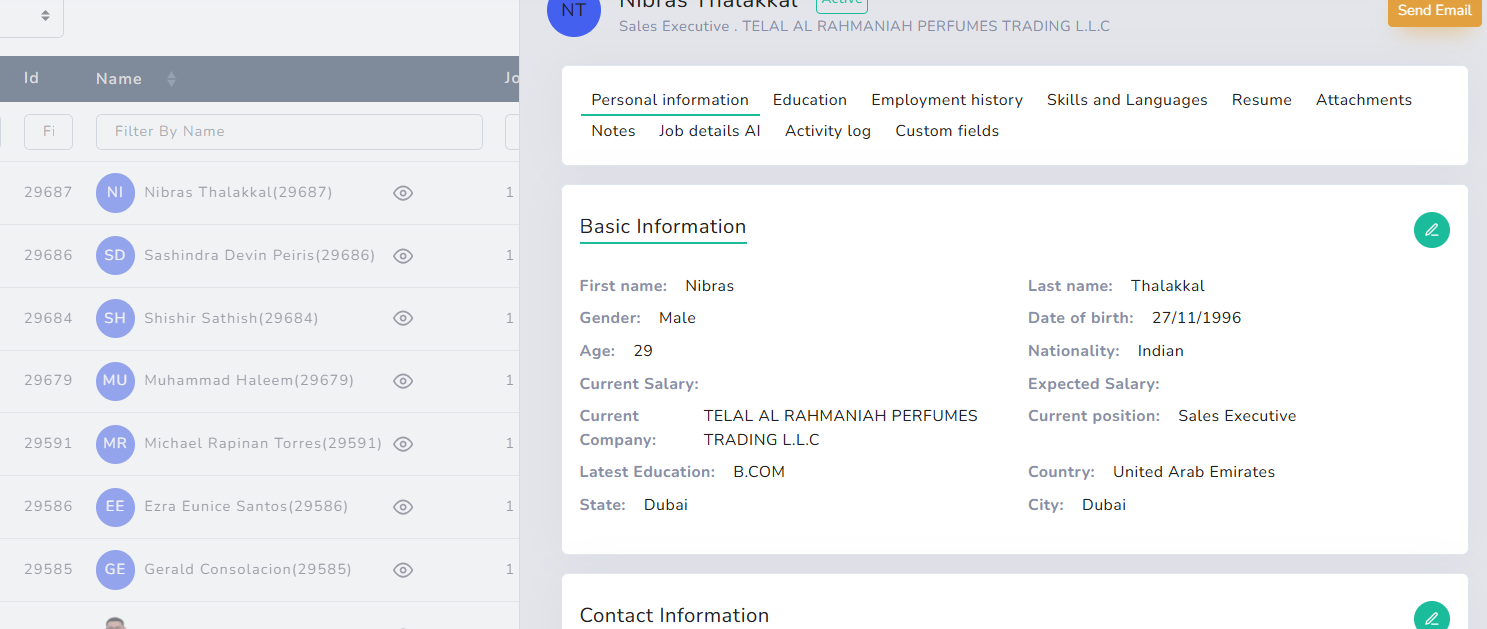
View Button: The “View” button in the candidate list allows the user to have a quick view of the candidate profile.
The authorized user can view the complete information and can also edit details if required.
Also, Email can be sent to each candidate from the quick view using “Send Email” button.
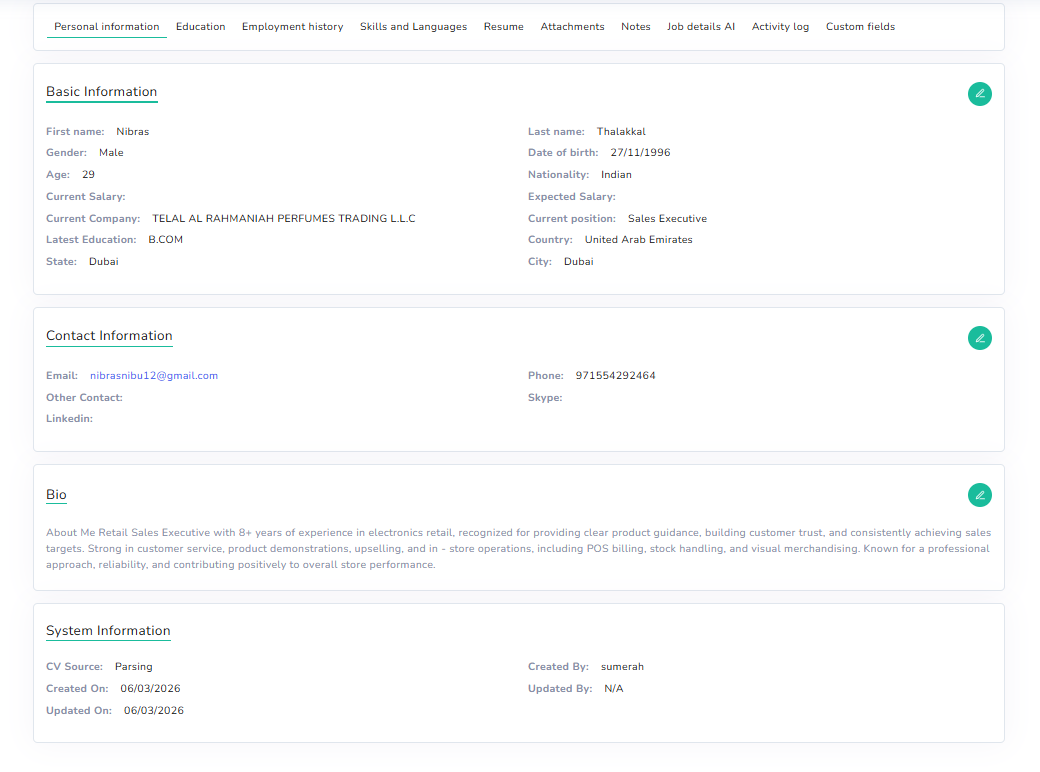
Full View: The full view of the candidate can be checked on clicking the name of the candidate directly instead of view button
Applicant Manager
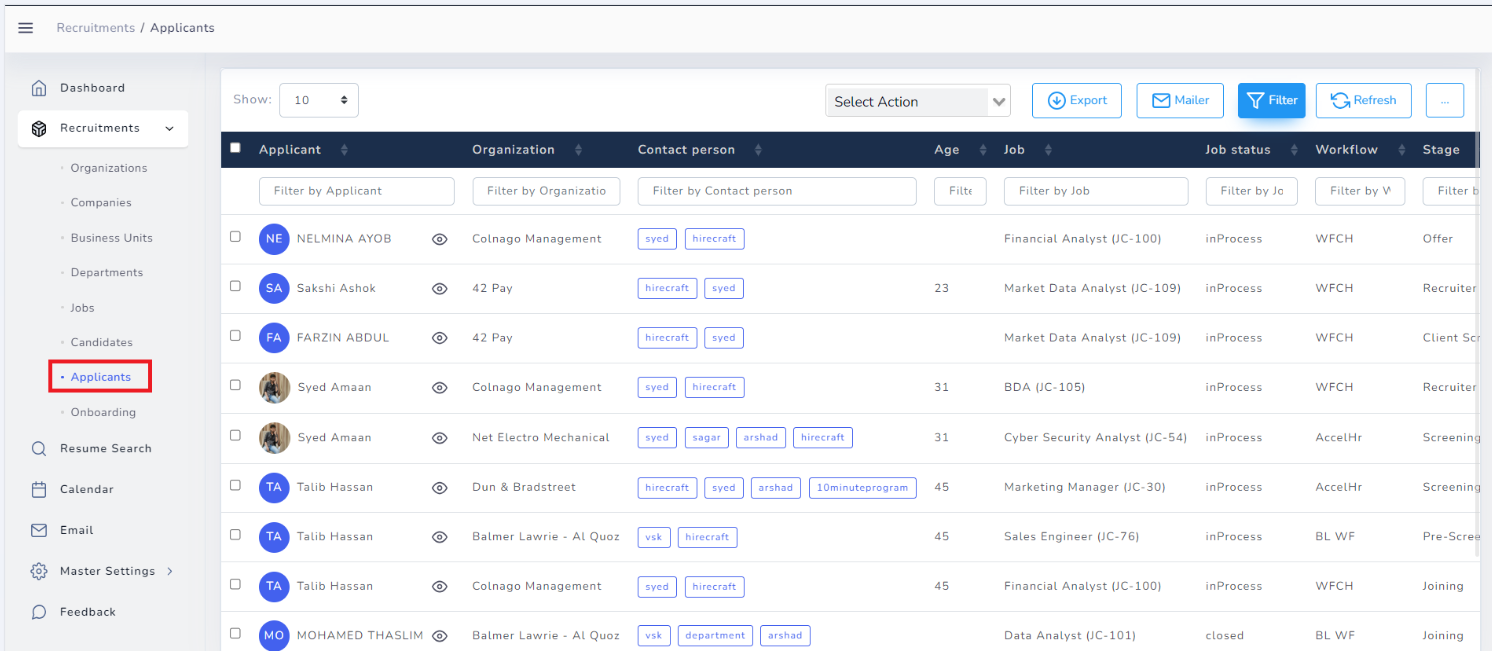
The Applicant Manager is a vital module within our Applicant Tracking System (ATS), acting as a centralized repository for all candidates actively engaged in the recruitment process. This encompassing module includes both parsed resumes and manually created candidate entries that are currently linked or tagged with specific job openings.
The applicants can also be linked to other jobs if required i.e. applicants are candidates which are linked to one (or) more than one jobs in the system.
Applicant Module Features
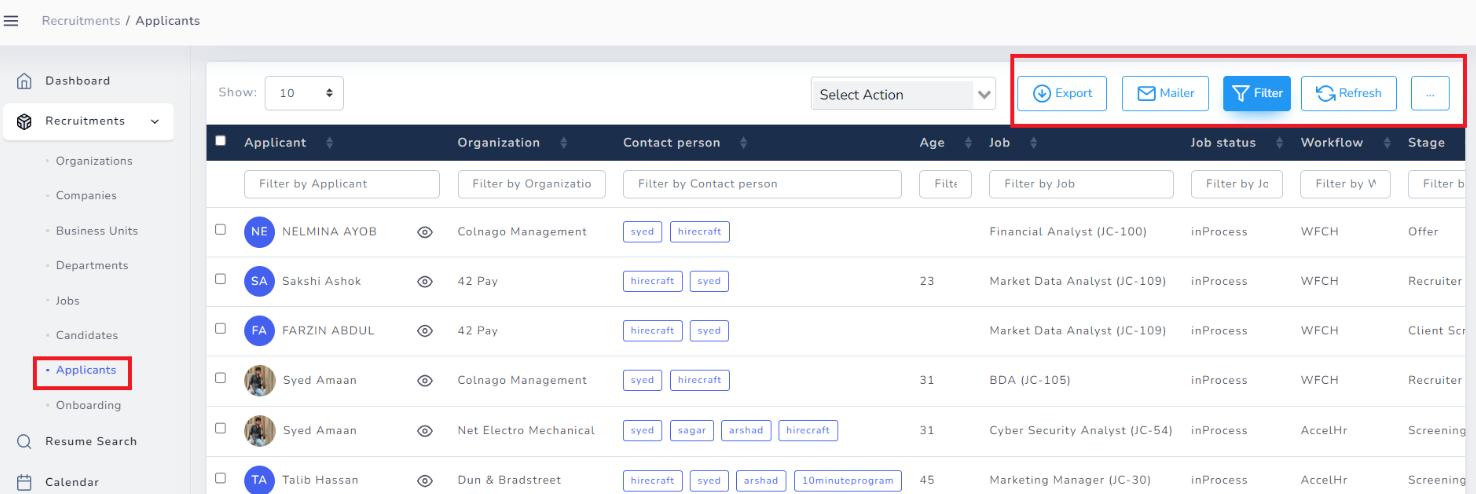
- Export: The “Export” option in the Applicant list allows the user to export all selected applicants to CSV File with relevant data. The user can select the applicants by ticking the box before their name and export all the selected applicants to CSV.
- Filters: Allows you to filter the complete candidate module by filtering based on each column.
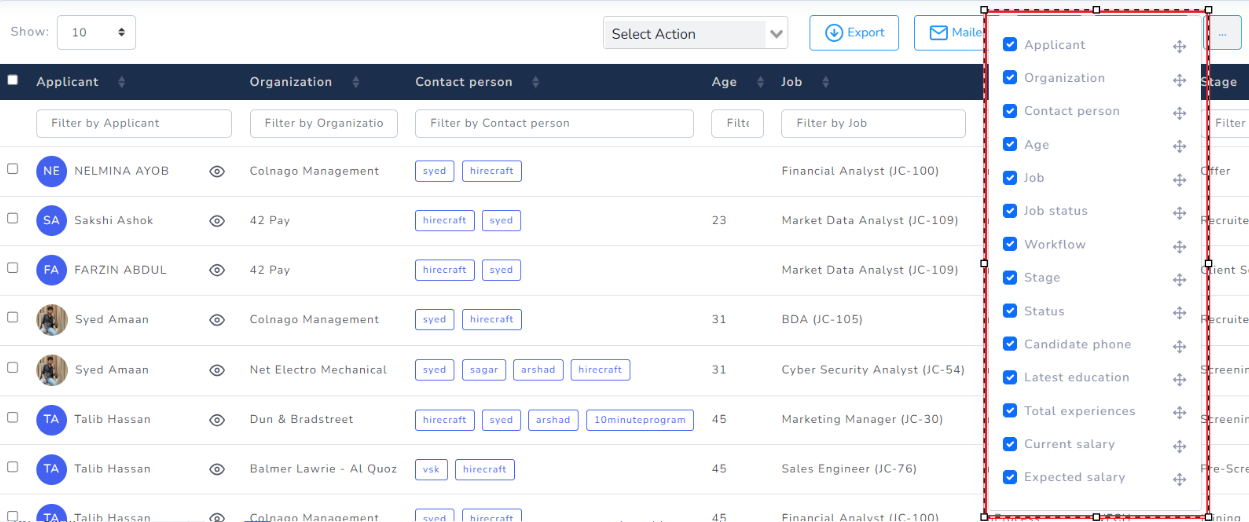
- Grid Sorting: With Recruix, the grid list can be customized and re-shuffled according to the needs of the user. Allowing each login to seperately design their grids and display the data for their use.
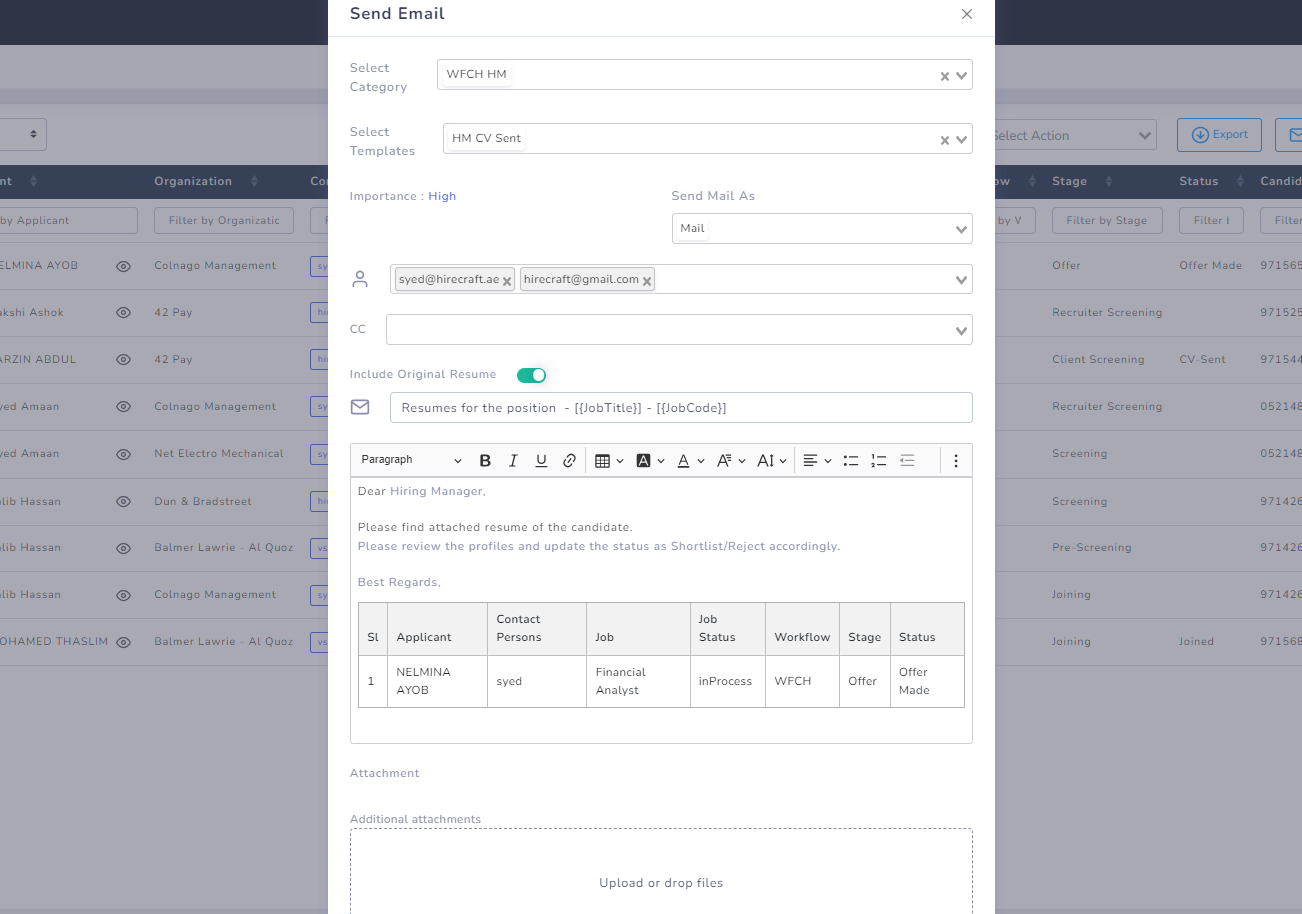
- Mailers: The Mailer Option is a powerful tool integrated within our Applicant Tracking System (ATS), allowing users to seamlessly communicate with internal stakeholders. This feature empowers recruiters and hiring managers to select specific applicants from the list and send their profiles, along with attached CVs, via email. Recipients, upon logging in with their credentials, can review the applicants specified in the mail and make decisions regarding shortlisting or rejection.
Additionally, users have the capability to choose from a selection of pre-defined email templates for efficient and consistent communication. Hence, templates can be pre-defined and used here for internal communication with the stakeholders directly.
Also, the user can write their own mail subject & body if not using any template.
Note: Users shall have the ability to select one or multiple applicants from the list for mailing purposes. Hence, multiple profiles can be sent over the mail with their attached CVs in one single mail or separate mails as required.
Applicant Select Action
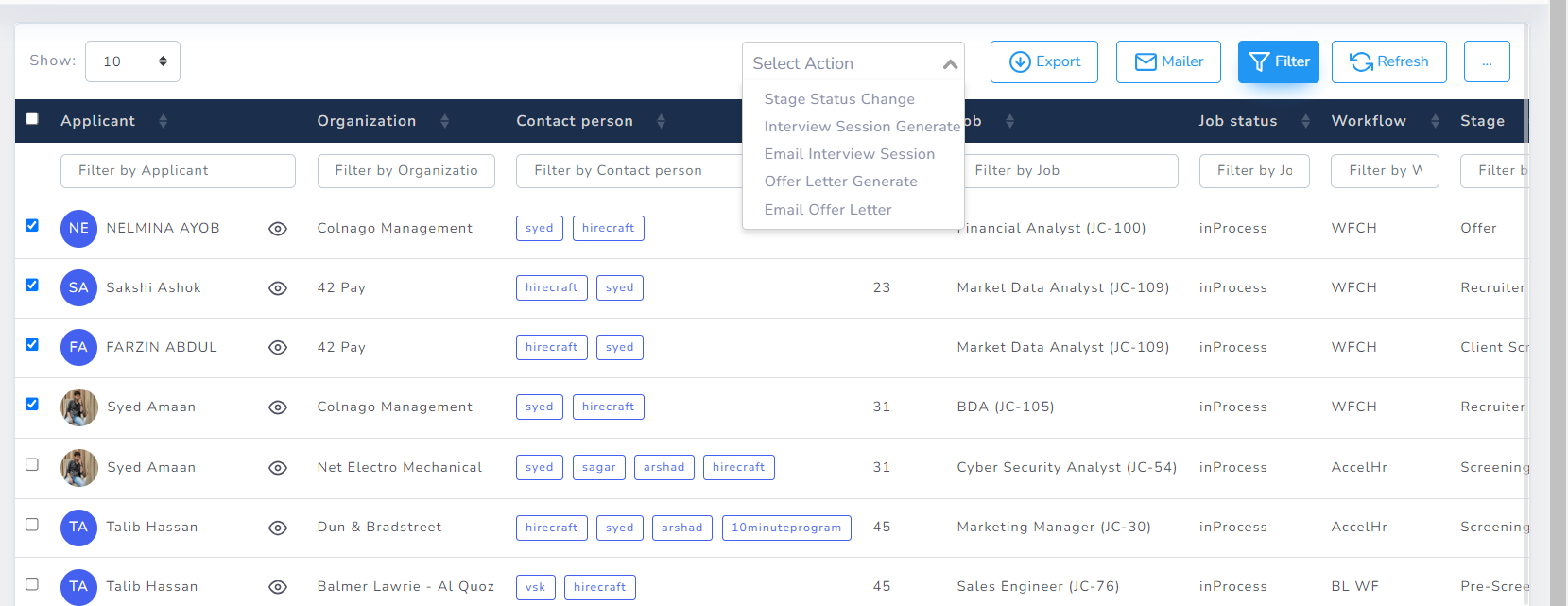
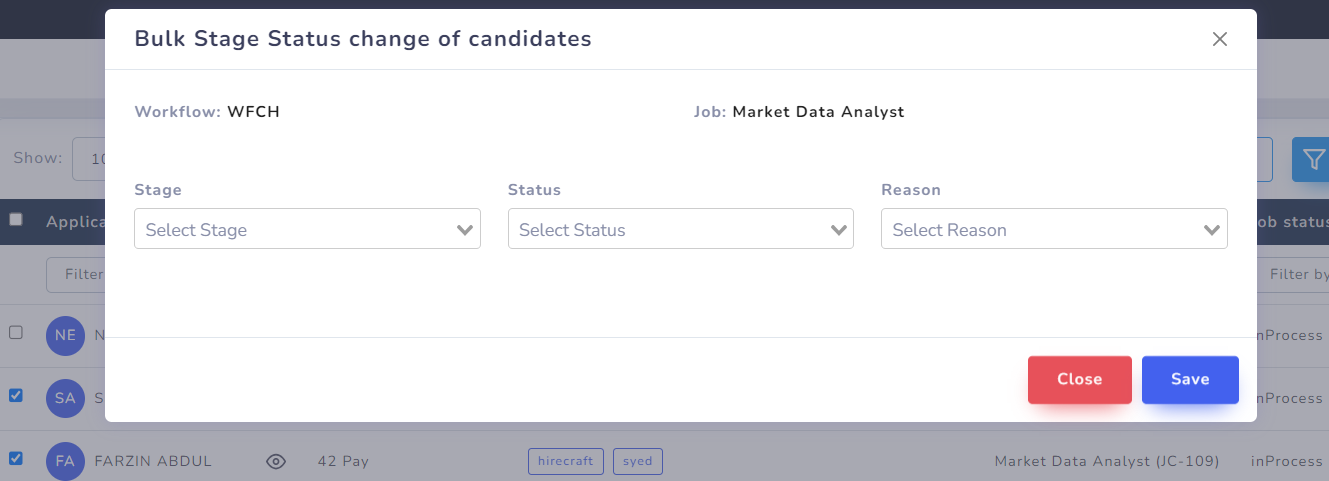
- Stage Status Change: The feature in the applicant list allows the authorized user to change the Stage-Status of the applicant in bulk.The applicants can be selected from same job from here and Stage-Status change button can be used to update the Stage-Status of the multiple applicants at once.
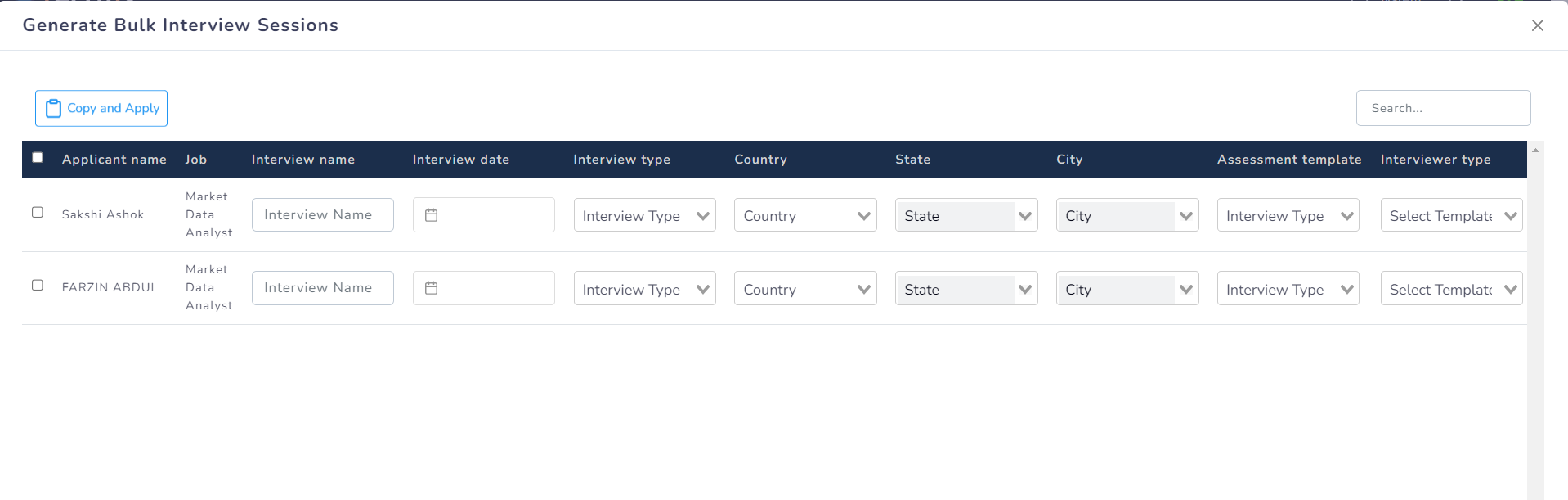
- Interview Session Generate: The feauture of the applicant list allows to schedule interview in bulk of the selected applicants from similar job at one go.
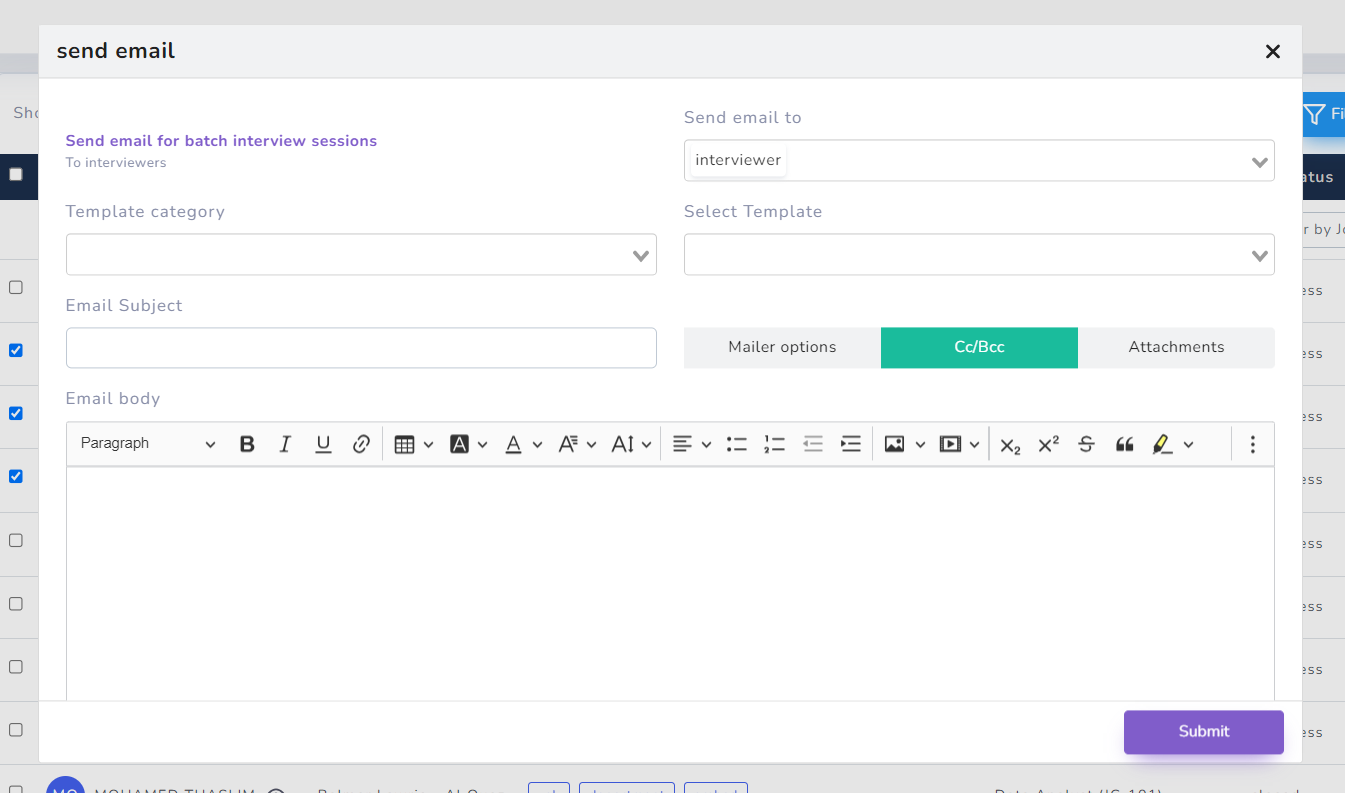
- Email Interview Session: The feature of the applicant list allows to send interview mail to selected applicants in bulk.
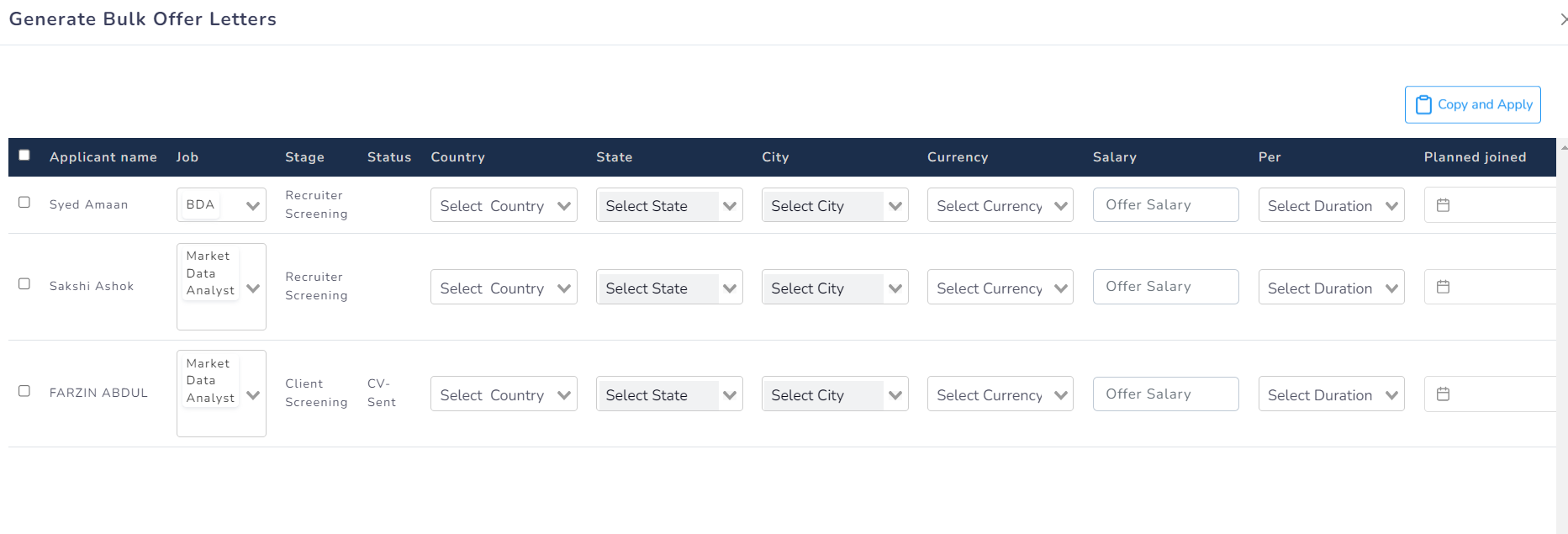
- Offer Letter Generate: The feature of the applicant list allows to genearte offer of multiple candidates at once
Resume Search
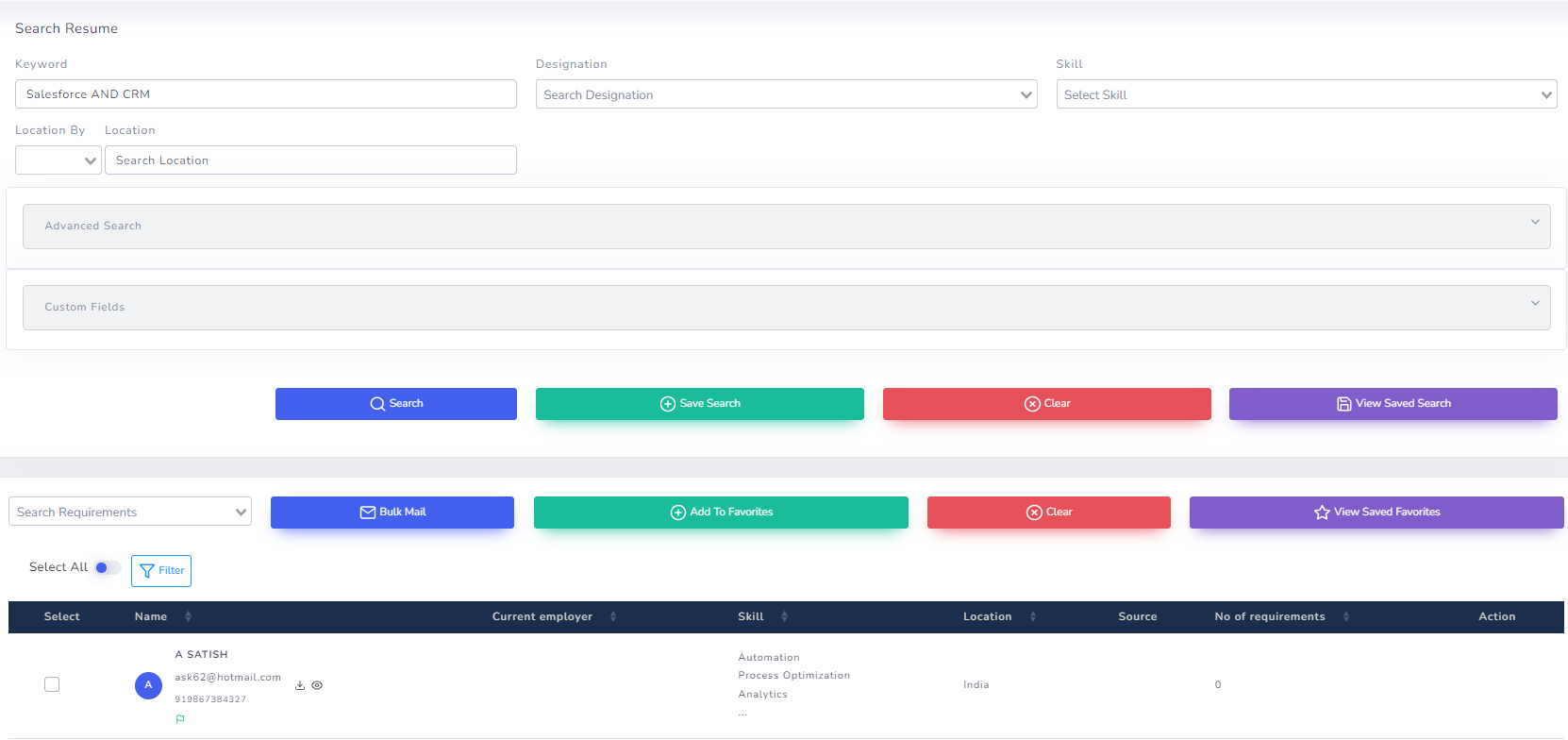
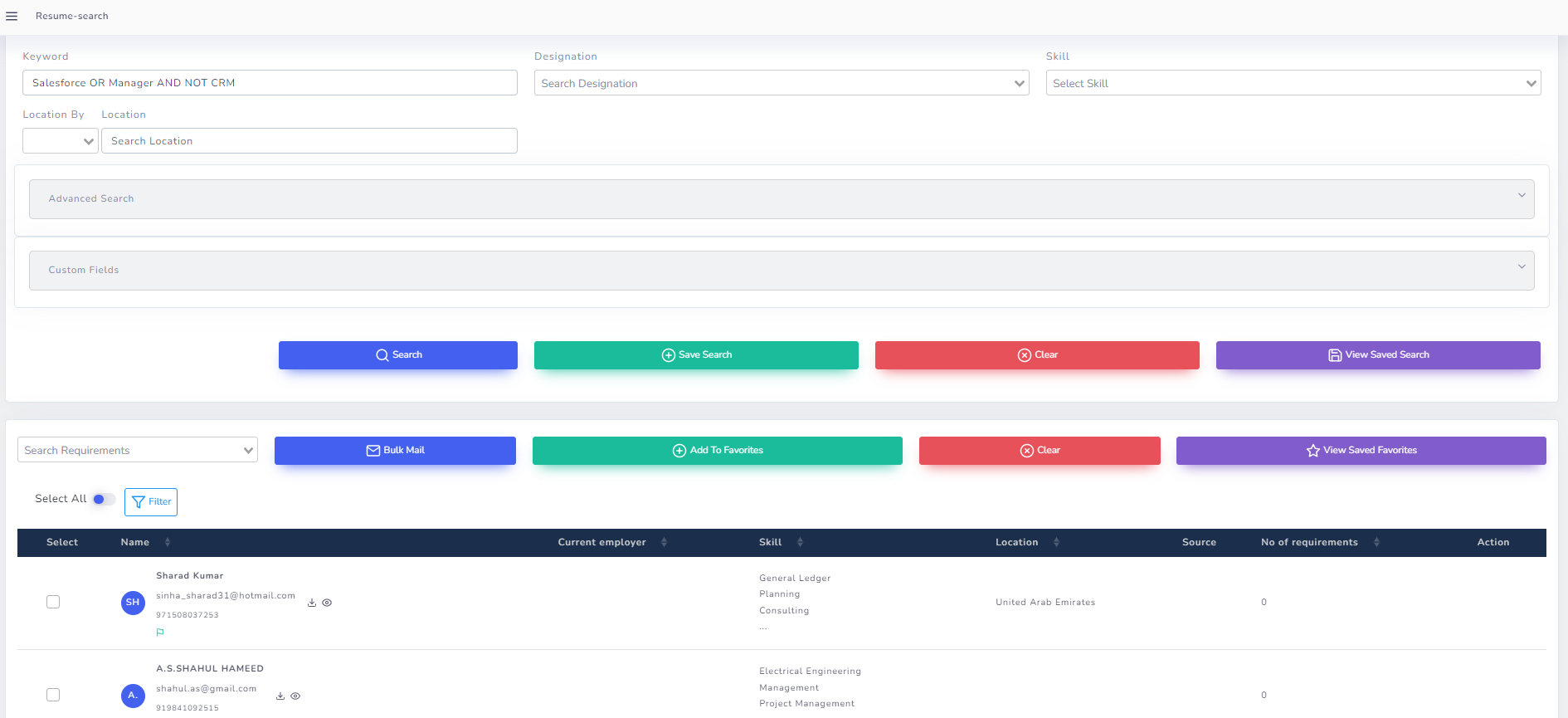
The Resume Search Functionality is a pivotal feature within our Applicant Tracking System (ATS), serving as an expansive repository for all profiles, whether parsed or manually created, regardless of their association with specific job openings. This comprehensive module acts as an invaluable internal resume bank, allowing users to perform refined searches based on diverse filtering mechanisms.The module shall serve as an extensive internal resume bank, providing access to the entirety of candidate profiles within the system. Users shall have the capability to apply various filtering mechanisms, enabling precise searches based on criteria such as experience, skills, education, and more.
The system shall support Boolean search operators for advanced keyword-based searches across all attached resumes i.e. each keyword is even searched in the resume document to provide accurate results.Based on the applied filters and search criteria, the system shall generate a list of profiles meeting the specified requirements.
Here you can enter the search keyword with the combination of AND/OR/NEAR/NOT
Resume Search Features
- Save Search: The feature allows to save the search filter criteria which can be used again in the future to filter the profiles or to save criteria used frequently
- Clear Button: Used to clear all the criteria been put previously
- View Saved Searches: To see the older saved filtering criteria
Resume Search Results
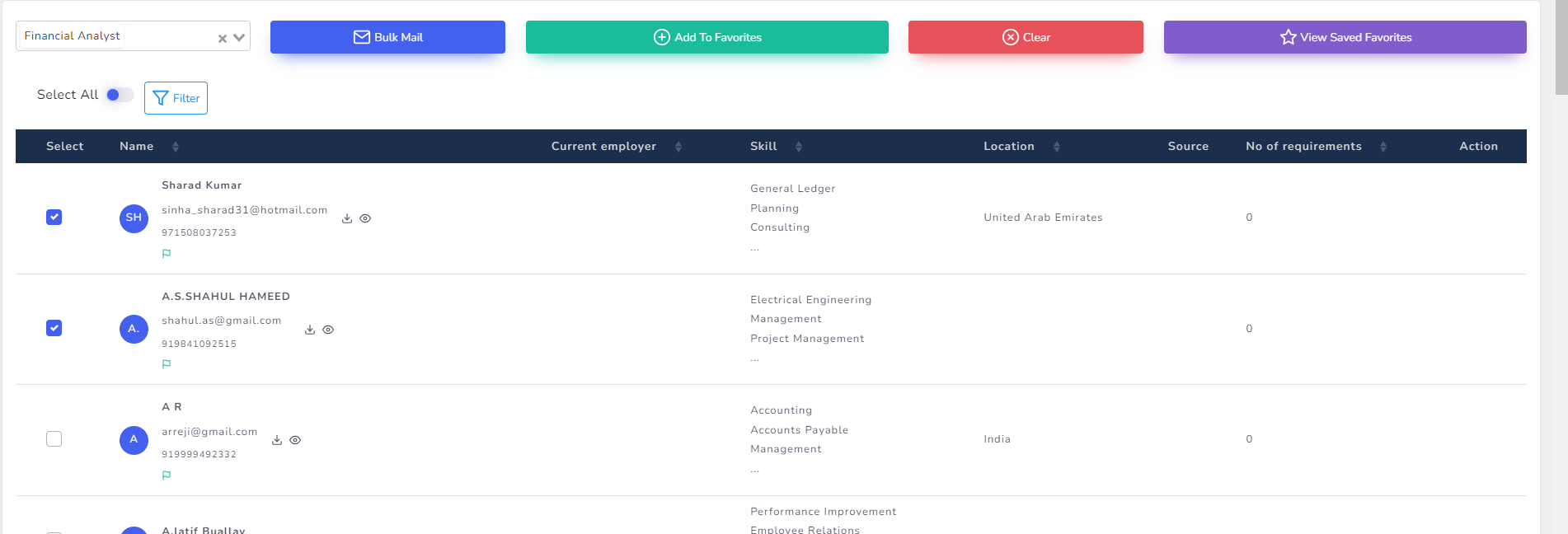
Now, based on the filtering criteria, the system will show the desired profiles.
- Adding profiles to a job: Step 1: Select the profiles which seems to be relevant for future action.Step 2: Select the job name to add the selected candidates to the job.
- Bulk Mail Step 1: Select the profiles which seems to be relevant for future action.Step 2: click on Bulk Mail button to send a mail to all the selected candidate profiles.
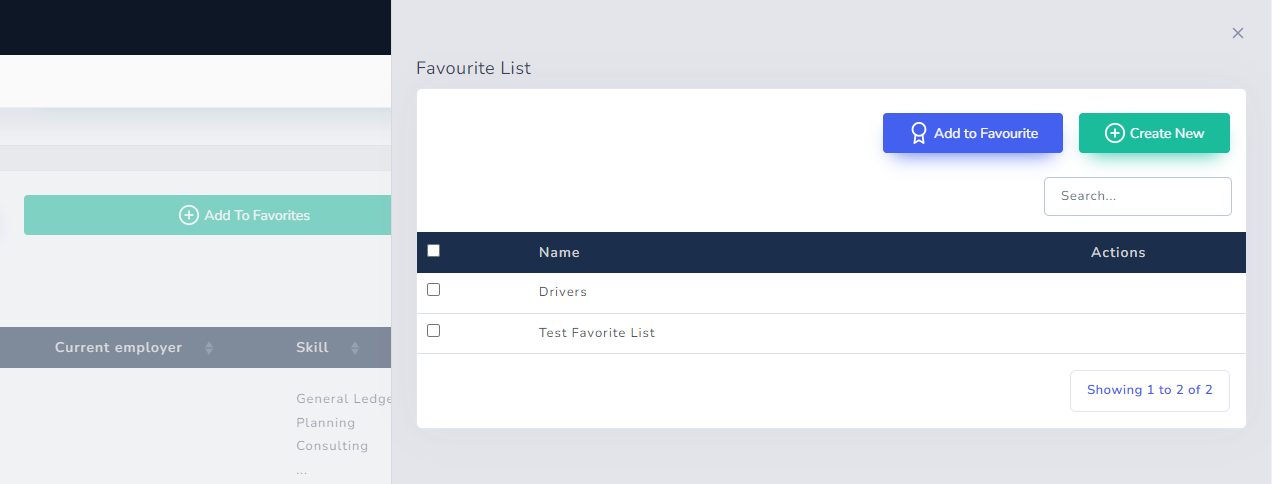
- Add to FavouritesStep 1: Select the profiles which seems to be relevant for future action.Step 2: click on “Add to Favourite” to classify or categories candidates among different categories.
Applicant Workflow
Multiple workflows can be provided by the client and is completely configurable, except for the mandatory sections highlighted below.
| Stage | Status |
|---|---|
| Recruiter Screening | Pending |
| On Hold | |
| Shortlisted | |
| Rejected | |
| CV sent to HM | Pending |
| CV Sent | |
| On Hold | |
| Shortlisted | |
| Rejected | |
| Interview | Pending |
| Scheduled | |
| On Hold | |
| Selected | |
| Rejected | |
| Cancelled | |
| Offer | Offer Pending |
| Offer Approved | |
| Offer Made | |
| Offer Accepted | |
| Cancelled | |
| Offer Rejected | |
| On-Boarding & Documentation | Pending |
| In-Process | |
| On-Hold | |
| Completed | |
| Joined | Yet To Join |
| Joined |
Workflow Process
The Applicant Tracking System (ATS) with Client Workflow is a comprehensive tool designed to streamline the recruitment process, incorporating distinct stages: Recruiter Screening, CV Sent to Hiring Manager, Interview, Offer, On-Boarding & Documentation and Joining. This integrated system provides a structured framework for efficient candidate management from initial screening to successful joining.
Recruiter’s Workflow
Recruiter: Can only see jobs they have created and job’s which are assigned to them by Admin via Team Allocation
Step 1:
- The authorized recruiter will login to the application and they can see their relevant stats on the dashboard.
- The recruiter will go to Candidate Module Click “Bulk Action” button at the top right to add multiple new profiles/CVs (OR) "Add New” button at the top right to add single new profiles/CVs in the system. (If required)
- Once the parsing is completed, the candidates will be added in the system for further processing.
Step 2:
- Once relevant candidates are added (If required), the recruiter will click on “Jobs Module” to create new requisitions as required.
- At the “Job Module” Click “Add New” button to create a job A window requiring to fill relevant information regarding the job will.
- The recruiter will fill-in all the details required and will complete the sections:
- Requirement Manager: Fill in job related basic information
- Education: Fill Level of Education required
- Skill & Language: Fill skills & language required for the job
- Documents: Attach documents related to the job (If Any)
- Once all necessary details are filled, the job with a unique job code will be created in the system.
Step 3:
- Now, once the job has been created, the recruiter can click on the job title which will open the complete job summary. Note: The details can be edited if required from here
- Also, other options can be seen here to have more functionality related to the job.
- Now, in order to link candidates with the job created Click on:
- Matching Candidates AI: This will suggest the recruiter with candidates using AI based on job skills required Vs candidate skills, Education, Location and salary.
The recruiter can check the candidate profiles suggested by the Recruix and link the candidates with job if found relevant by clicking “Add Candidate” button
- Search and Add: This allows the recruiter to search the candidates manually by applying filters (OR) search for the candidates parsed by the recruiter in earlier step and link them to the job
- Team Allocation: The super recruiter can assign a team of recruiters to work on the job via Team Allocation. Hence, a normal recruiter can work on jobs created by them or assigned to them.While a super recruiter will be able to see all the jobs in the system and can work on any.Auto-Mailer: Auto mailer is sent to the allocated team, notifying them about the created job.

- Once the candidates are linked to the job, the job will automatically appear in “In-Process” state from “Planned” state and the same can be seen in job list in Job Module
- Job Title: Show the title of the job
- Organization: Show the name of organization to which the job belongs to
- Total Candidates: Show the total number of candidates linked to this particular job (Hyperlink)
- Openings: Number of vacancies related to the job
- Job Title: Status of the job Automatically goes “Planned” when any candidate is linked
- As the “Total Candidates” column have hyperlink values, hence clicking on the number will display all the candidates linked with the job
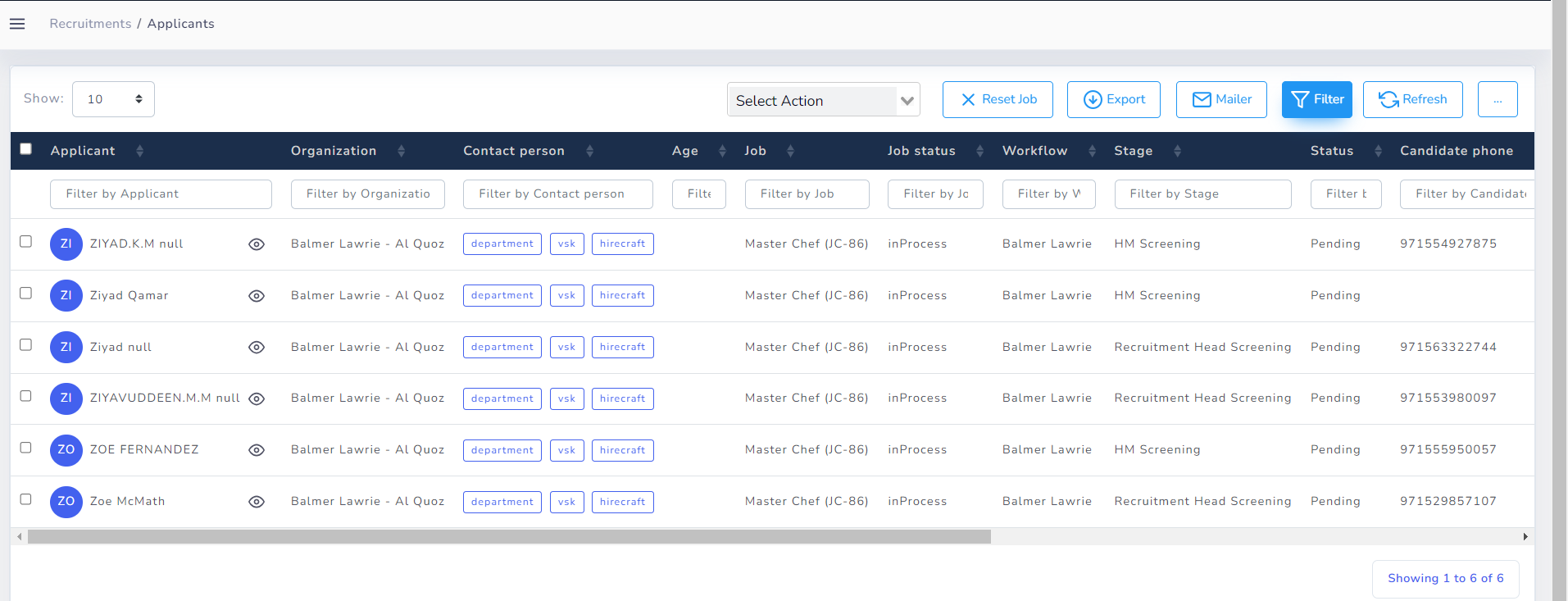
Hence, by clicking the number in the “Total Candidates” column will direct to the list of candidates related to this job
Step 4:
- Now when candidates are added to the job, the candidates will be under “Recruiter Screening” Stage.
- The recruiter can select the relevant applicants or select all applicants tagged in the job and click the “Mailer” button to send the mail to the relevant Hiring Manager for viewing the profile.
- The recruiter will select the required template which will automatically load the mail body and will click on send.
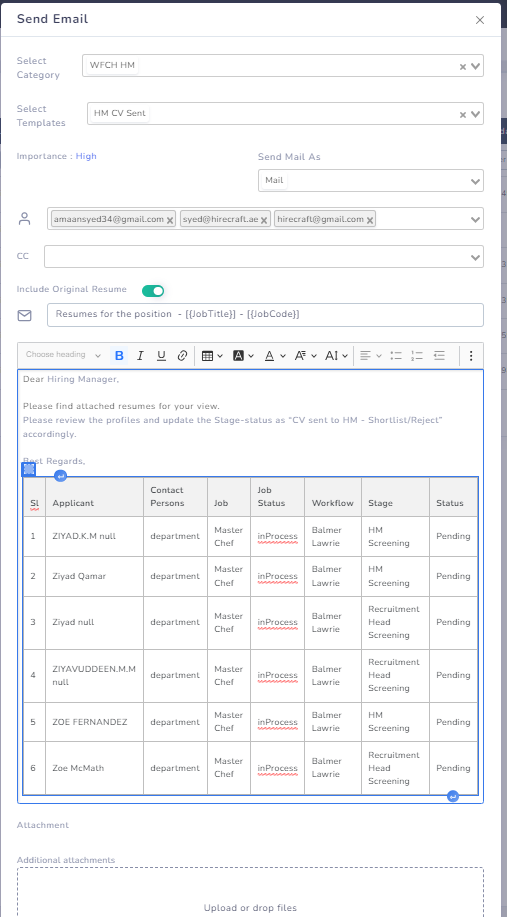
- Once the mail is sent from the system, the relevant Hiring Managers tagged will receive a mail displaying the list of candidates and their attached resumes.
- The Hiring Managers can review the profile with their login on the Recruix.
Hiring Manager’s Workflow
Step 1:
- Once the hiring manager has received the mail from the system, the HM can login at Recruix with their credentials.
- Once logged-in, the HM will go to job module where they will be able to see the jobs, they are authorized to work on.
- The HM can click-on “Total Candidates” number to see all the applicants related to the job.
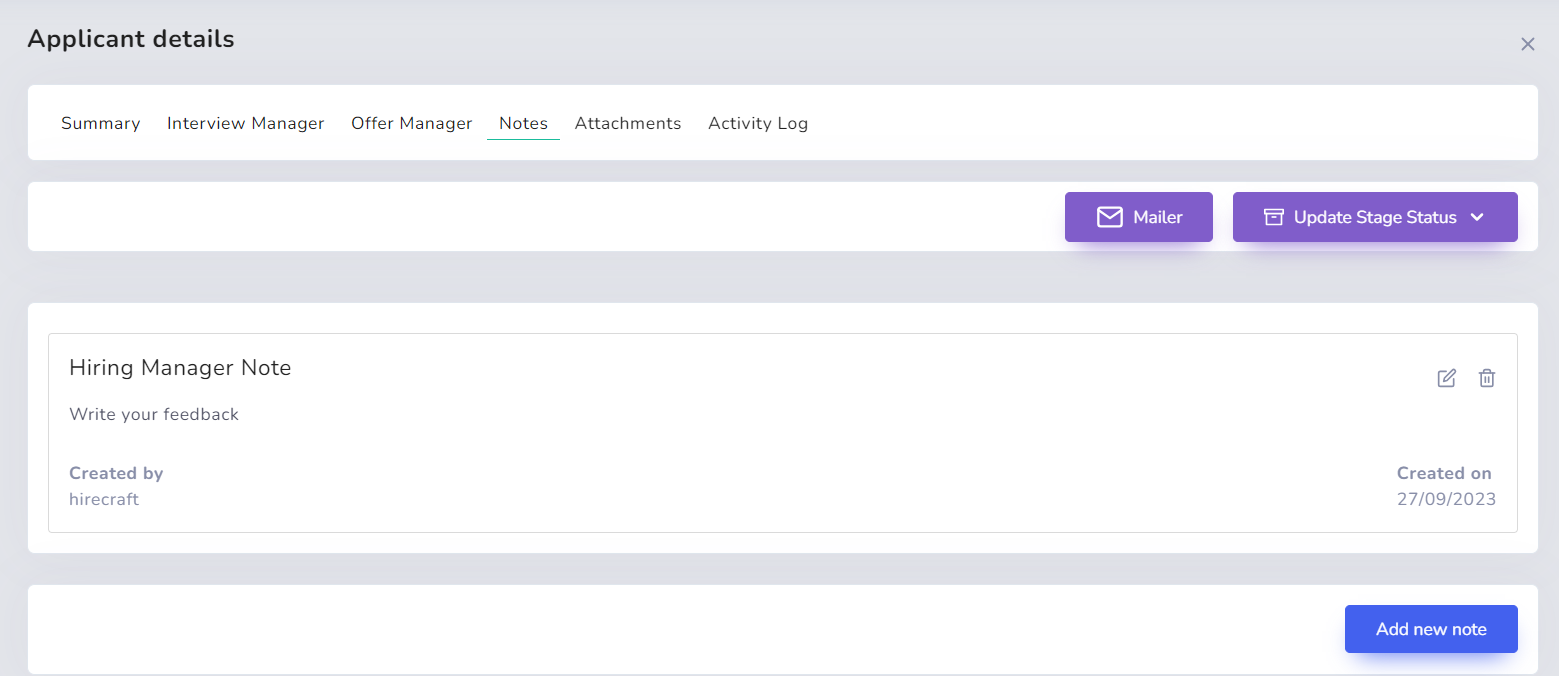
- The HM now can click on each applicant name to view the applicant summary & CV and can mention their feedback in “Notes” section against each applicant.
- Once reviewed and feedback given, the HM can update the Stage-Status of each applicant to “CV sent to HM – Shortlist/Reject” accordingly.
Auto-Mailer: Once the HM marks a candidate as “Shortlist/Reject”, an auto-mailer will be sent to the recruiter and the allocated team to take further action.
Interview Manager
The "Interview" stage within the ATS with Client Workflow is a crucial step in the recruitment process. At this stage, the recruiter takes charge of scheduling the interview for the selected applicants.
Recruiter Workflow
Step 1:
- Now, once the applicants are shortlisted by the HM and the same has been notified to the recruiters and team via auto mail, the recruiter will further process the applicant for interview stage.
- For the selected applicants, the recruiter will check their notes section to check for the feedback from the HM and know the tentative dates for the interview.
- Once confirmed with the interview dates with the candidate, the recruiter will go to:
Job Module Click “Applicant Number” click “View button” Interview Manager Schedule New Interview
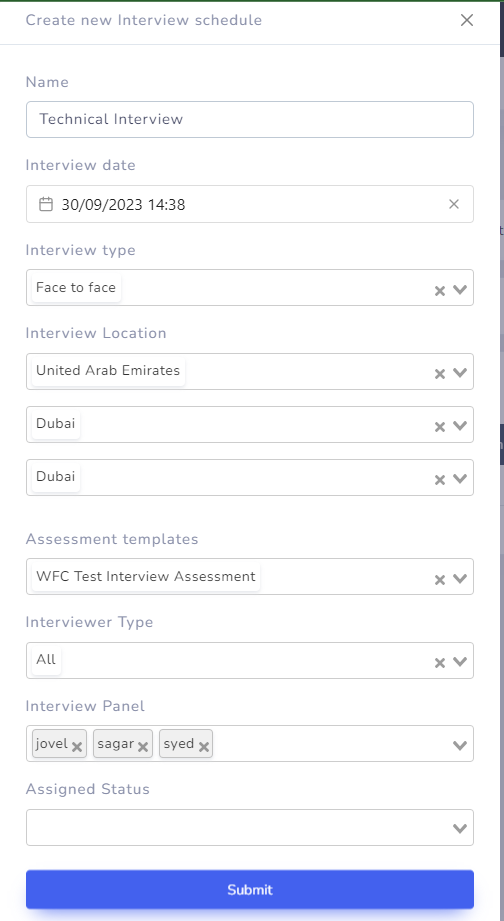
- Schedule New Interview will open the interview detail window, where relevant details can be filled, predefined interview assessment template can be selected and also panel members can be selected for the interview.
Once interview details are filled and submitted, the interview with the details filled will be scheduled.
- Once clicked on submit, the system will ask to send the mail to candidate with interview details. The recruiter can select relevant template and send interview details to candidate over mail.
Auto-Mailer: An auto mailer is sent to the panel member with interview date, time, type of interview and interview name.
Bulk Interview Schedule
Step 1:
- Now, once the applicants are shortlisted by the HM and the same has been notified to the recruiters and team via auto mail, the recruiter will further process the applicant for interview stage.
- For the selected applicants, the recruiter will check their notes section to check for the feedback from the HM and know the tentative dates for the interview.
- Once confirmed with the interview dates with the candidate, the recruiter will go to: Job Module Click “Applicant Number” Tick mark the selected applicant Interview Session Generate
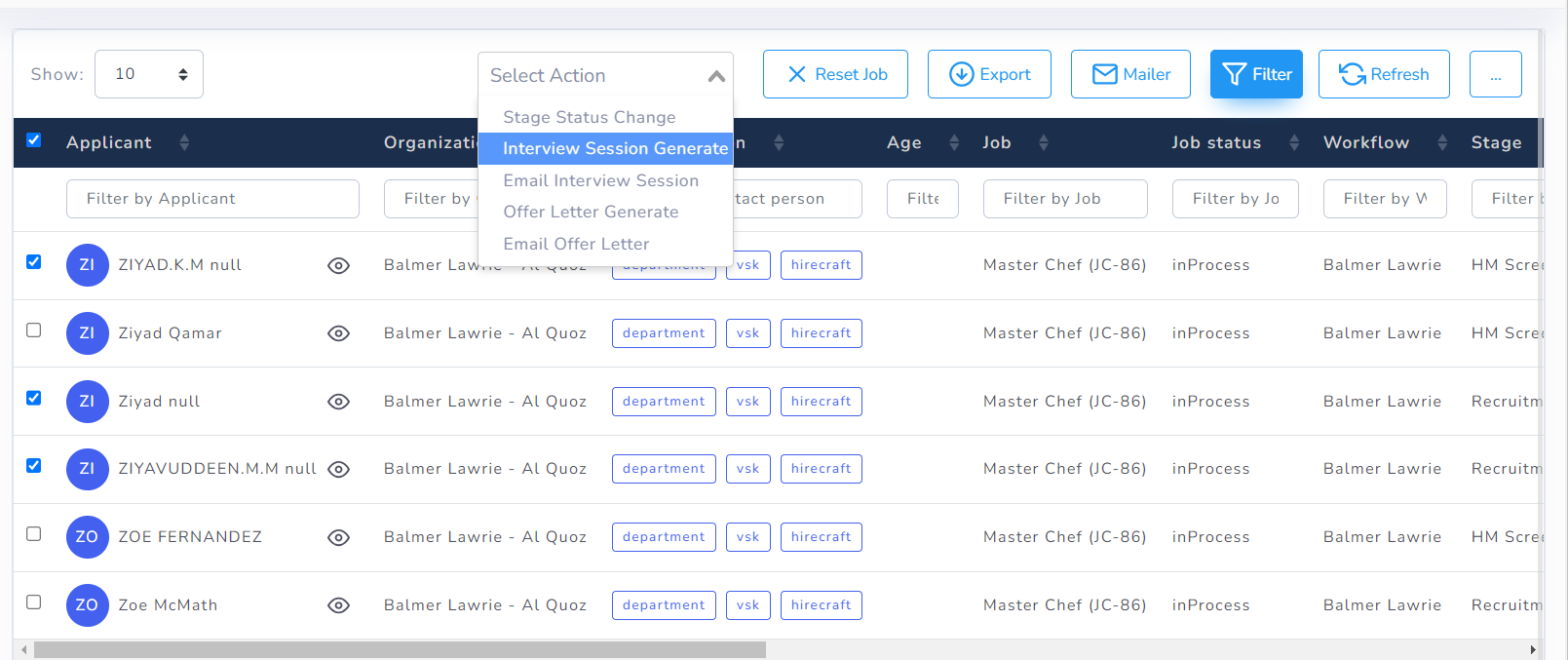
- Interview Session Generate: Allows to schedule interview for multiple candidates by filling different interview details for each candidate. Candidate here should be from the same job
Interview Panel Member’s Workflow
Step 1:
- At the time of interview, the HM can assess the applicant based on the assessment template and provide the ratings accordingly.
- Each Panel Member will have access to their personal assessment template where they can provide the rating of the candidate
Panel members can login to Recruix, and go to: Job Module Click “Applicant Number” click “View button” Interview Manager “Visit button” under feedback to provide the feedback
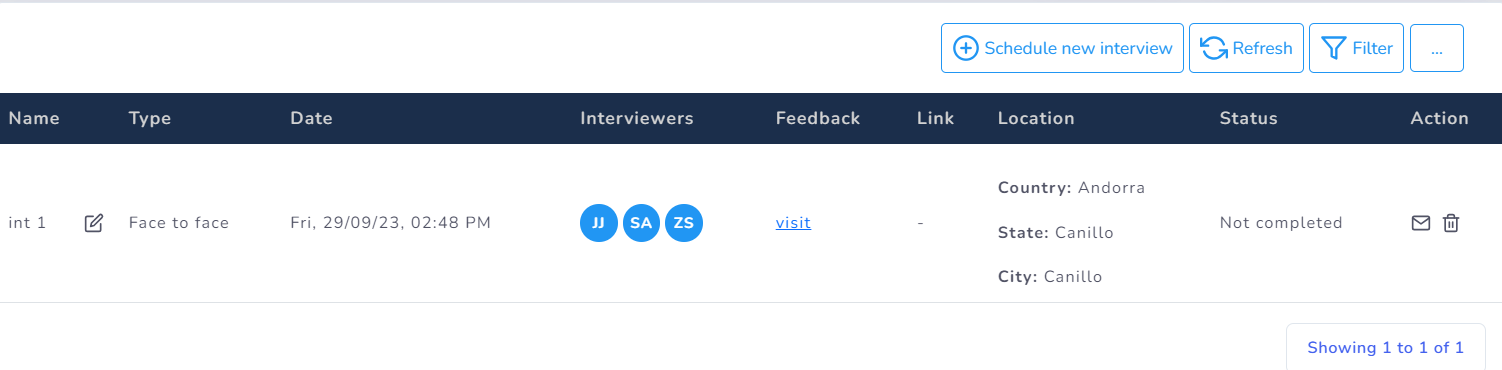
- The panel members can provide ratings and comments against each question in the assessment template and can provide overall feedback
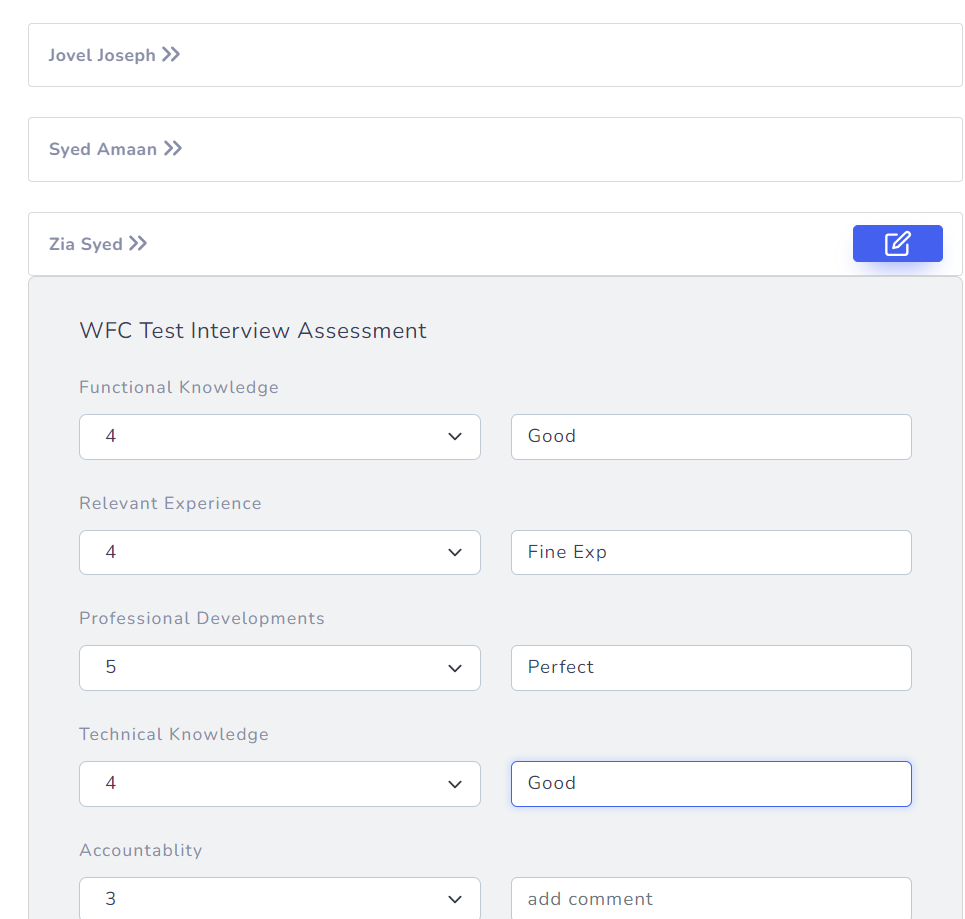
Note: The assessment templates questions can be customized according to the needs and multiple templates can be created.
Auto-Mailer: When the panel members submit the interview feedback, each time an auto-mail is sent to the recruiter and allocated team to notify the same
- Once, all the panel members have submitted the feedback, the recruiter & the allocated team can check the feedback given from Interview manager Visit button and further process the candidate for offer if candidate is selected based on the feedback.
Offer Manager
The "Offer" stage in the ATS with Client Workflow is a critical phase where HR or designated personnel generate and extend formal offers to selected candidates. This stage involves the preparation, customization, and delivery of employment offers, outlining the terms and conditions of employment.
Step 1:
- Now, once the applicants are shortlisted by the HM and the same has been notified to the recruiters and team via auto mail, the recruiter will further process the applicant for interview stage.
- For the selected applicants, the recruiter will check their notes section to check for the feedback from the HM and know the tentative dates for the interview.
- Once confirmed with the interview dates with the candidate, the recruiter will go to: Job Module Click “Applicant Number” click “View button” Offer Manager
- The recruiter will now fill the relevant details related to the offer.
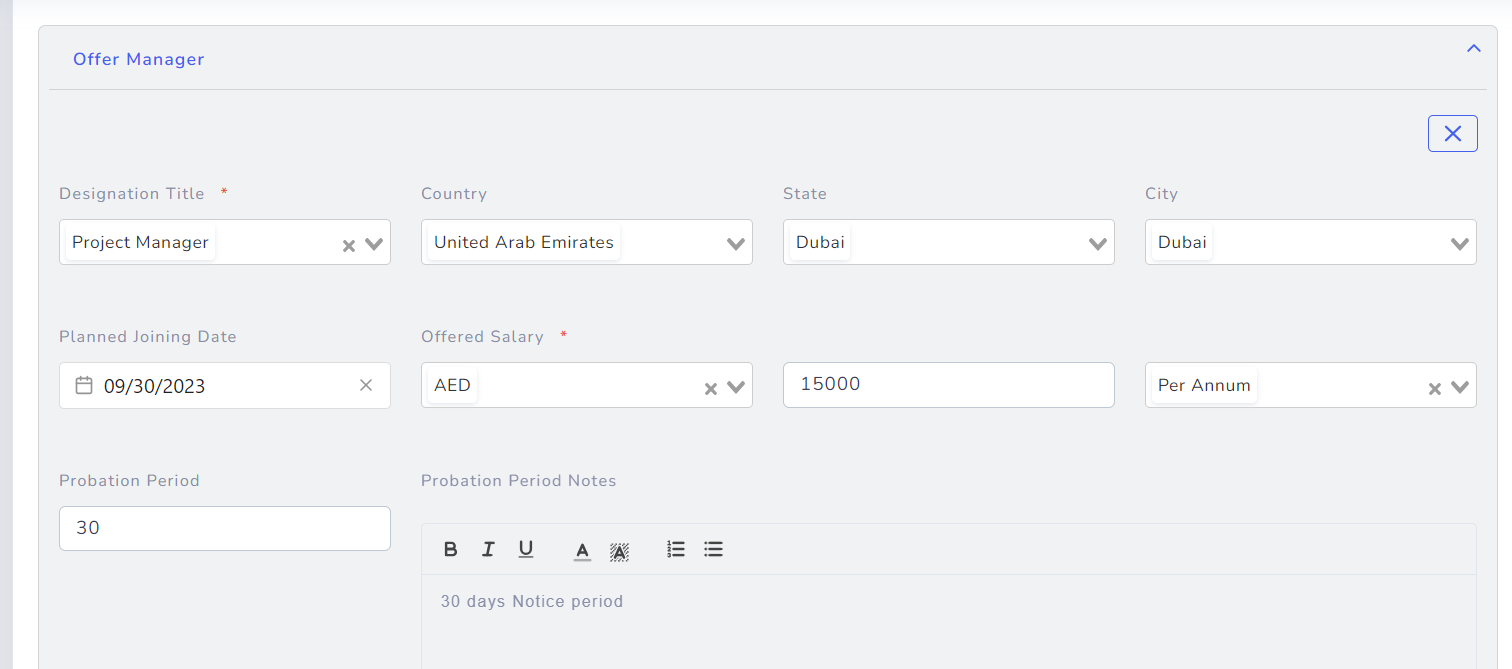
Step 2:
- Once the details are filled and saved, the recruiter will now generate the salary breakdown of the salary
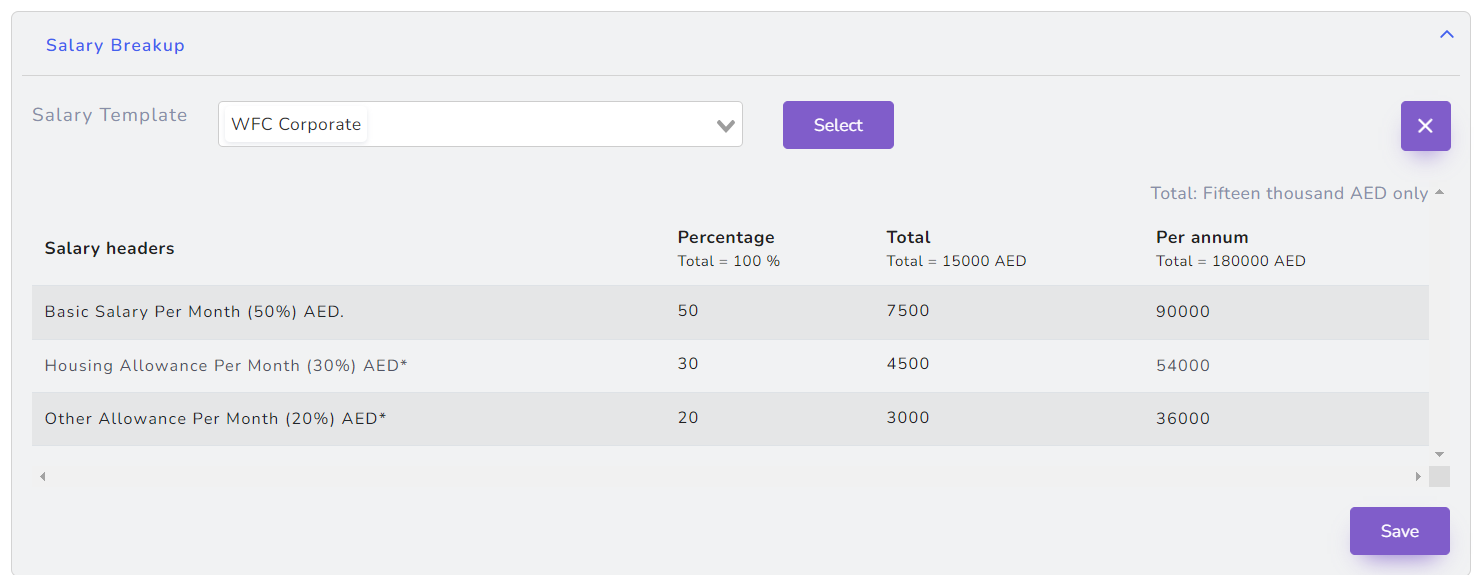
NOTE: The Salary break-down are pre-defined templates in the system and multiple salary templates can be customized and created based on pre-defined formulas.
Step 3:
- Once offer details are filled and salary break-down is finalized, the recruiter can select the offer letter template and can generate the offer letter for the candidate.
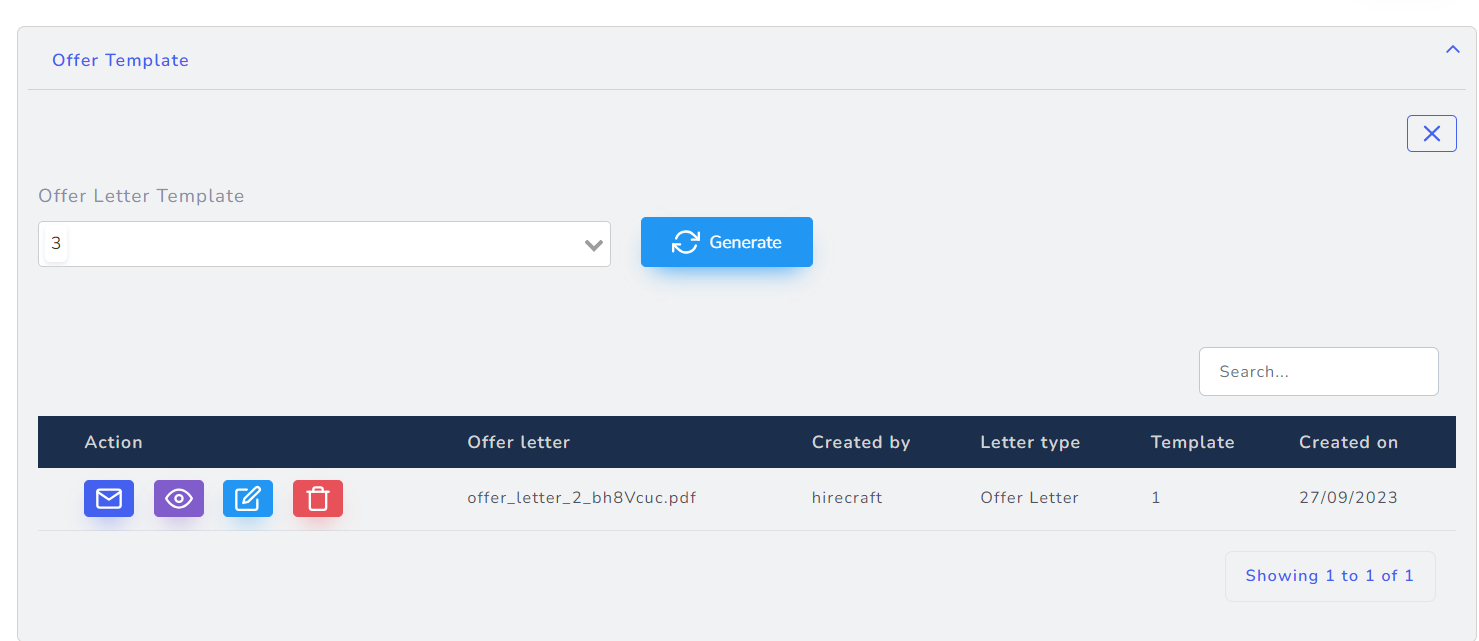
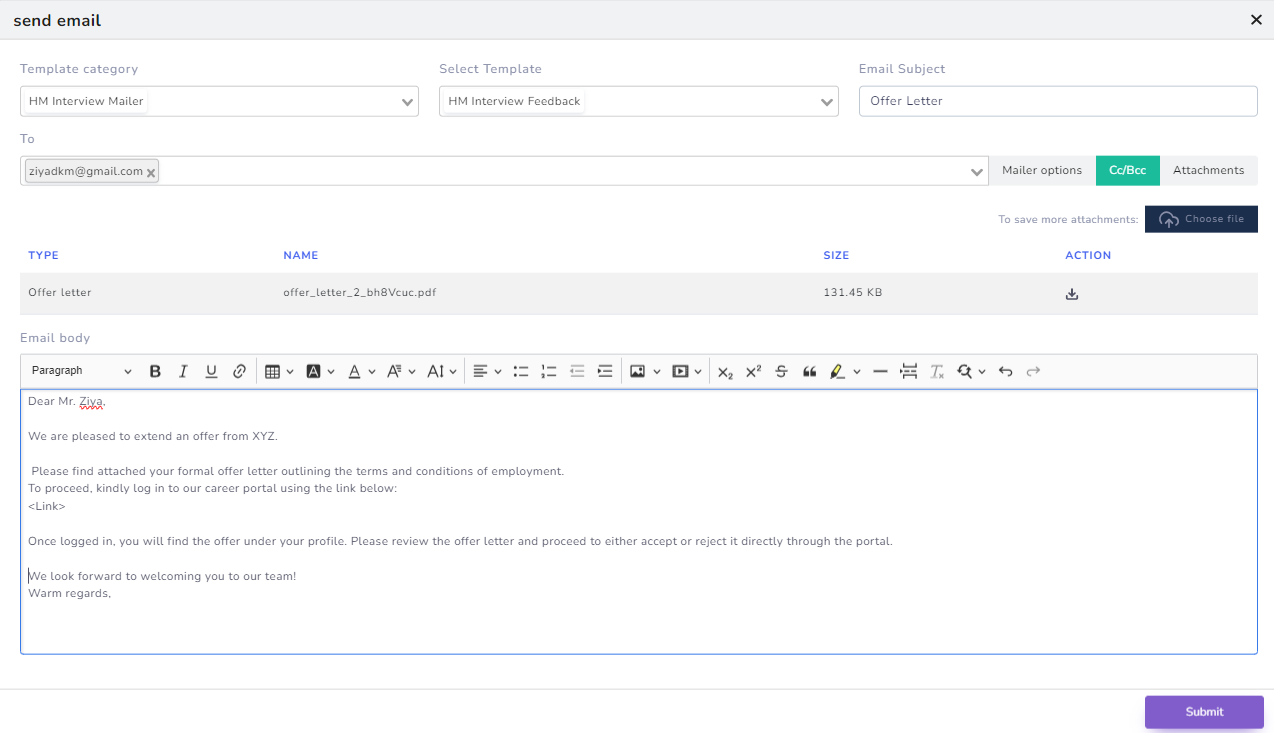
- Once offer is generated, the same can be mailed to the candidate asking him to login to the career portal and Accept/Reject the offer. The mailer will be a template in the Recruix which can be customized as required.
NOTE: The recruiter will update the stage-status of candidate as “Offer-Offer Made” to display the offer at career portal
On-Boarding
Career Portal
Step 1:
- Once notified to the candidate to login to career portal and accept/reject the offer letter.
- The candidate will login to the career portal where they will be displayed the offer letter.The candidate can download the offer letter, review it and accept/reject accordingly.
- Once candidate accept the offer letter, the document upload section for the candidate will be open and candidate can upload all the relevant documents on the career portal itself.
Auto-Mailer: When candidate accepts/reject the offer, an auto- mailer goes to the recruiter notifying the same
Auto-Mailer: When candidate uploads the document, an auto- mailer goes to the recruiter notifying about the document upload
Document Verification
- Once the candidate has accepted the offer, the candidate stage-status will automatically be updated as Offer-Offer Accepted and candidate will be moved to the on-boarding module in the Recruix.
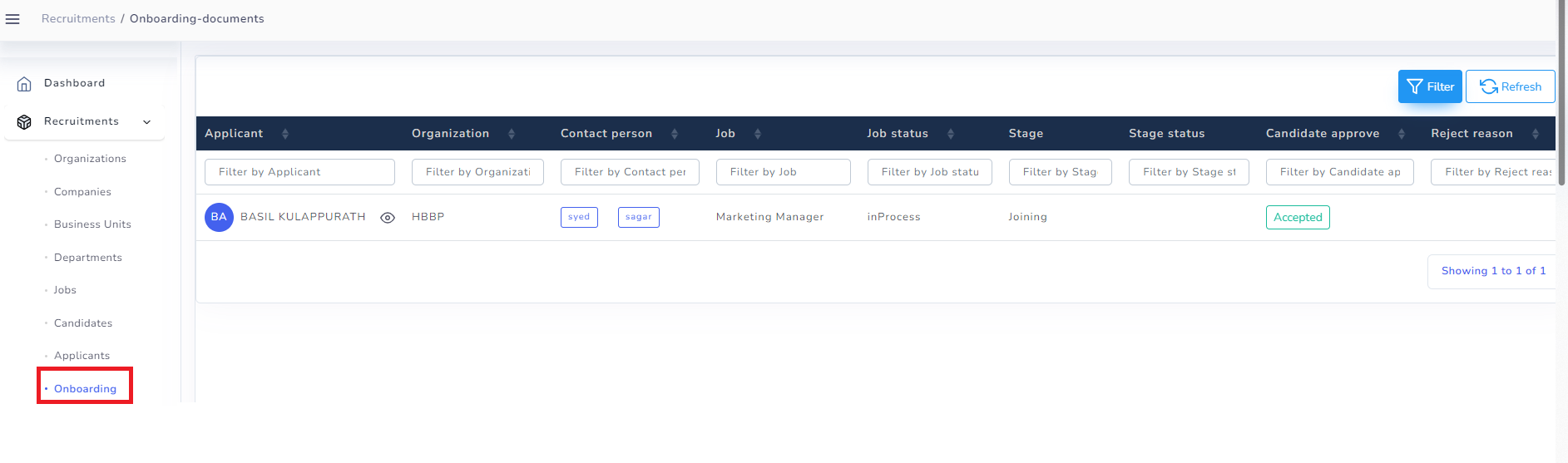
- The recruiter can go to the on-boarding list and click the “View” button to display the documents uploaded by the candidate.
- Here recruiter can mark each document as verified or rejected after viewing
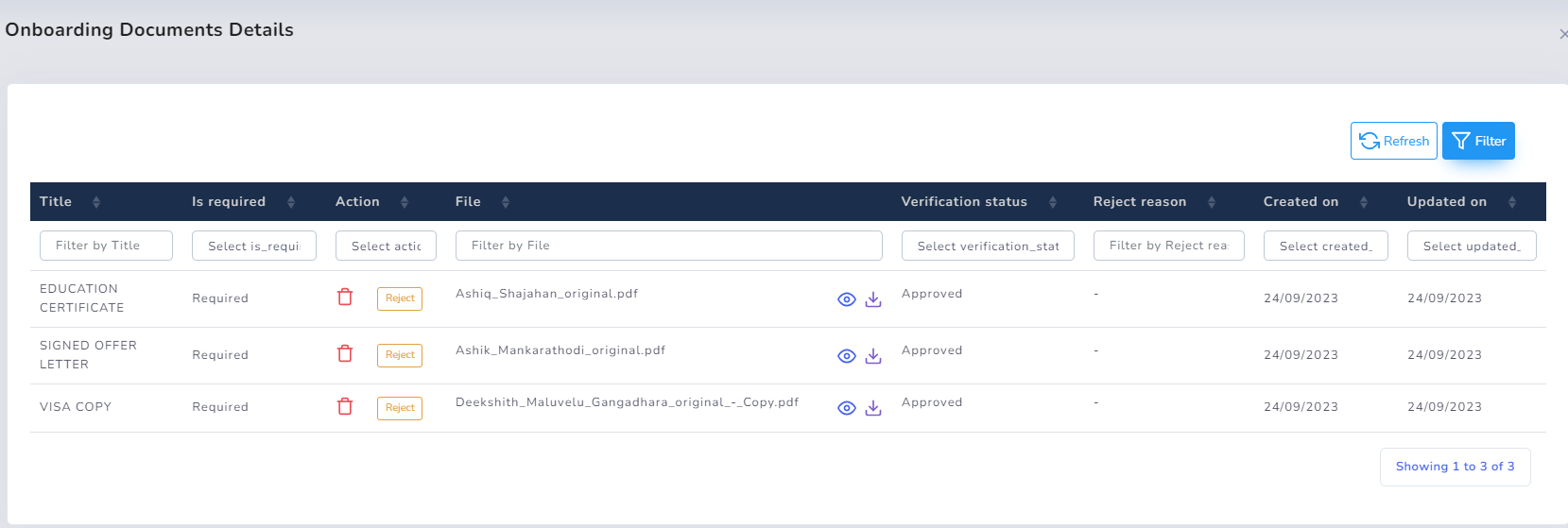
Auto-Mailer: If recruiter marks a document as rejected, an auto-mailer goes to candidate notifying to re-upload that document
- Once all documents are uploaded and verified, the recruiter will update the candidate stage to VISA for further processing.